---
title: Color and Materials
description: Discover the redesigned Gravity Sketch Color & Materials Panel—new RGB input, custom libraries, textures, swatches, and transparency controls.
---
[Skip to content](https://help.gravitysketch.com/hc/en-us/articles/11469828586269-color-and-materials#main-content)

Open main navigation
Close main navigation
How can we help you?
- There are no suggestions because the search field is empty.
1. [Gravity Sketch](https://help.gravitysketch.com/?hsLang=en)
2. [Creation tools](https://help.gravitysketch.com/creation-tools?hsLang=en)
3. [Sketching and Basic Editing](https://help.gravitysketch.com/creation-tools?hsLang=en#sketching-and-basic-editing)
# Color and Materials
[The color and materials panel](https://help.gravitysketch.com/hc/en-us/articles/11469828586269-Color-and-Materials?hsLang=en) in VR has been redesigned to keep you in your flow state when working to represent the aesthetics of your ideas in 3D. The updated panel includes some new functionality as well as improvements to existing UI. Key updates include:
1. An updated color panel to unify all color and material actions
2. A new RGB input for selecting colors
3. Easily accessible color swatches panel
4. The ability to save and load textures and materials, to build up a custom library
Use the color wheel to change the color, material, transparency, and textures of active tools or objects in the sketch.
---
#### Color and Materials Panel
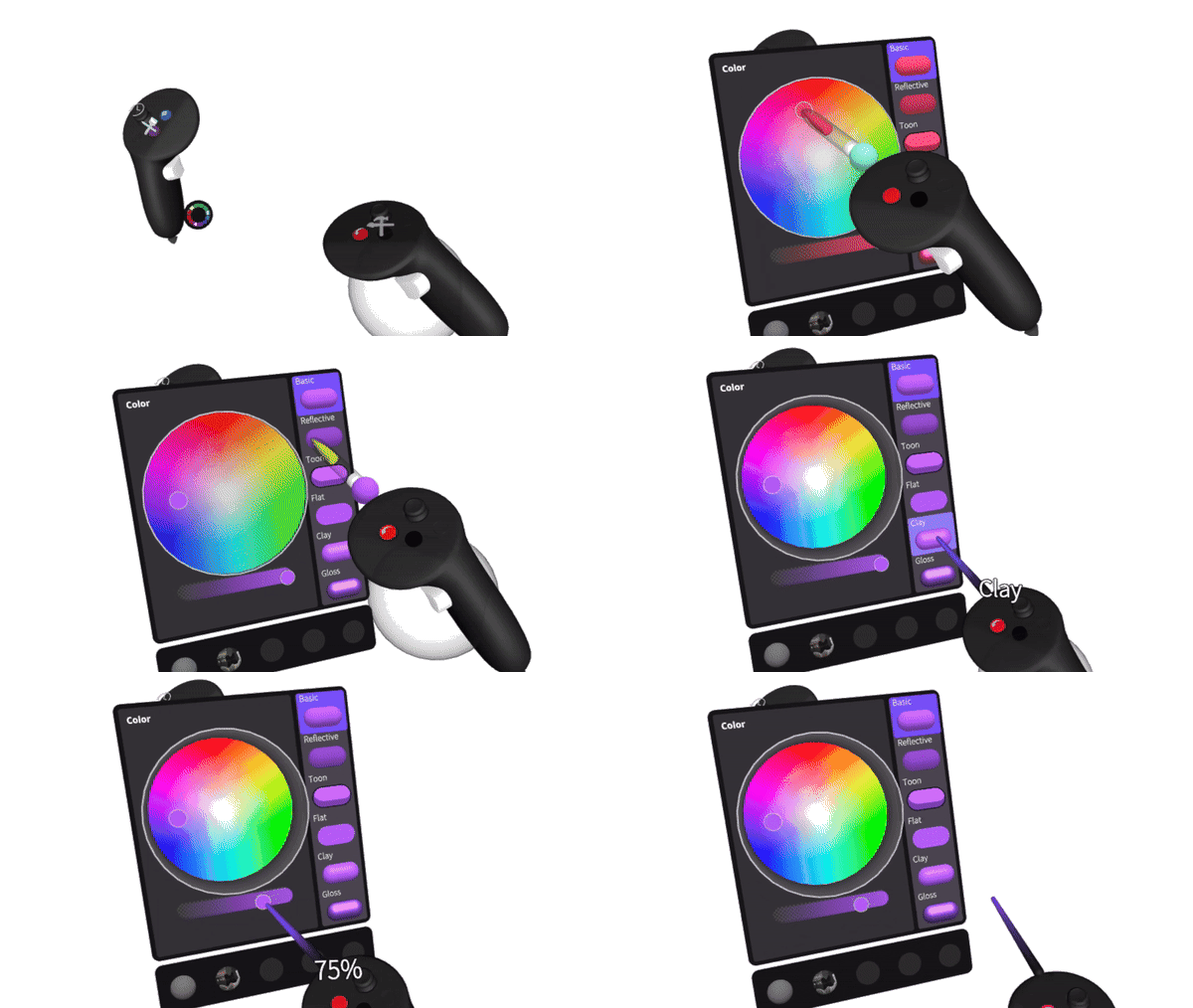
**A. Color Wheel:** Use color picker to change the color and push or pull the controller to adjust the hue
**B. Materials:** Select between Basic, Reflective, Toon, Flat, Clay and Gloss materials
**C. Transparency:** Slide the circle to adjust the level of transparency
**D. Color History:** Pick from textures and colors that have previously been used in the sketch
---
### Change Color and Material
#### Change the color of the active tool
The Color wheel is located at the interior of the non-dominant hand controller.
1\. To access it move your dominant hand controller to the color wheel button and pull the index finger trigger.
2\. Move the color picker to preferred color and press the index trigger to change the color and select any material on the right side of the panel
---
#### Change the color and material of objects
1\. Grab the object or objects and press the color wheel button on your dominant hand controller
2\. Move the color picker to preferred color, press the index trigger to change the color and select any material on the right side of the panel

---
#### **Pick the existing color in the sketch**
When changing the color and material of object in the sketch with the color picker you can press and hold the trigger to pick a color and texture from an existing object or image.

Hold the trigger on the non-dominant hand at the same time to only pick the color.
---
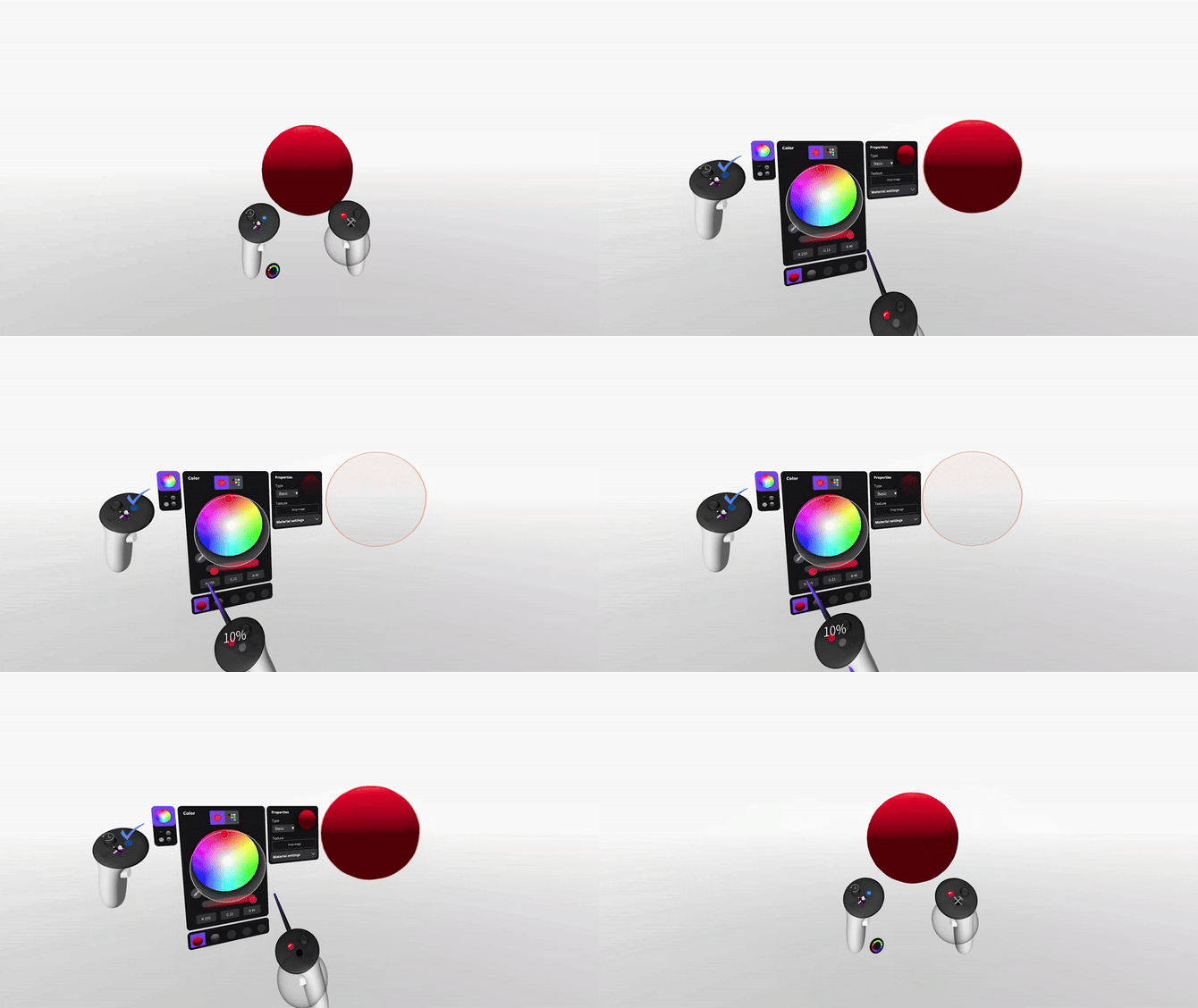
#### Transparency
Point to the circle, press and hold the index trigger and drag the circle to the left or right to adjust the transparency level
#### 
---
#### Textures
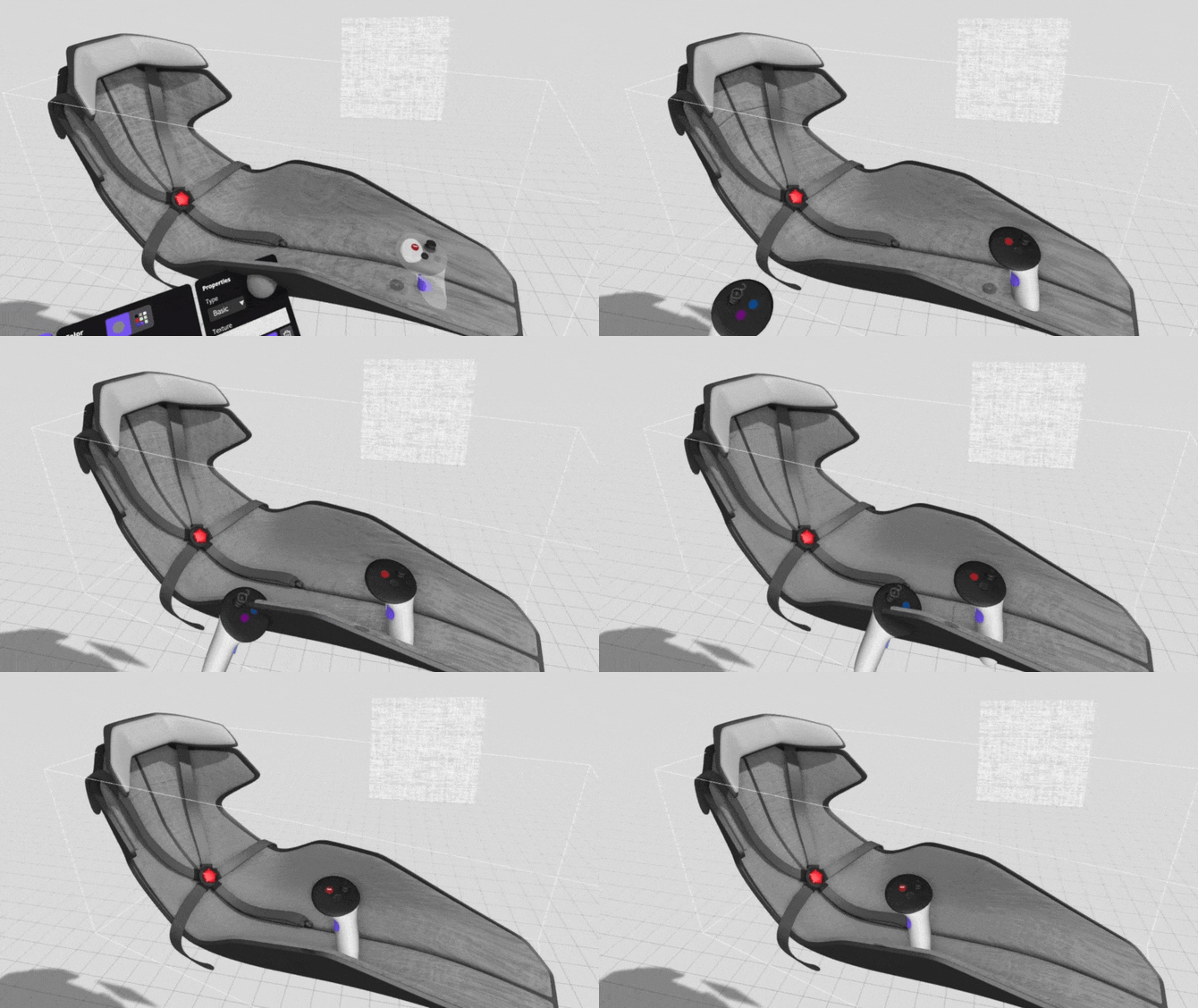
You now have the ability to control the scale and rotation of textures applied to objects. Textures allow you to reflect the personality and style behind your designs. You can now more precisely convey a design’s aesthetics by perfectly aligning materials with the geometry you’ve created.
You will first need to upload textures as png or jpeg to your headset (locally or via cloud) and then import them to the sketch from the Import menu and select from your [Reference Images](https://help.gravitysketch.com/hc/en-us/articles/5912557661981?hsLang=en).
Once you’ve imported an image to use as a texture, you can apply it as usual by dragging it onto a surface, and then adjust it using the sliders in the color menu. You’ll now be able to manipulate the scale and rotation of texture to get the right visual. Texture panning is soon to follow!
---
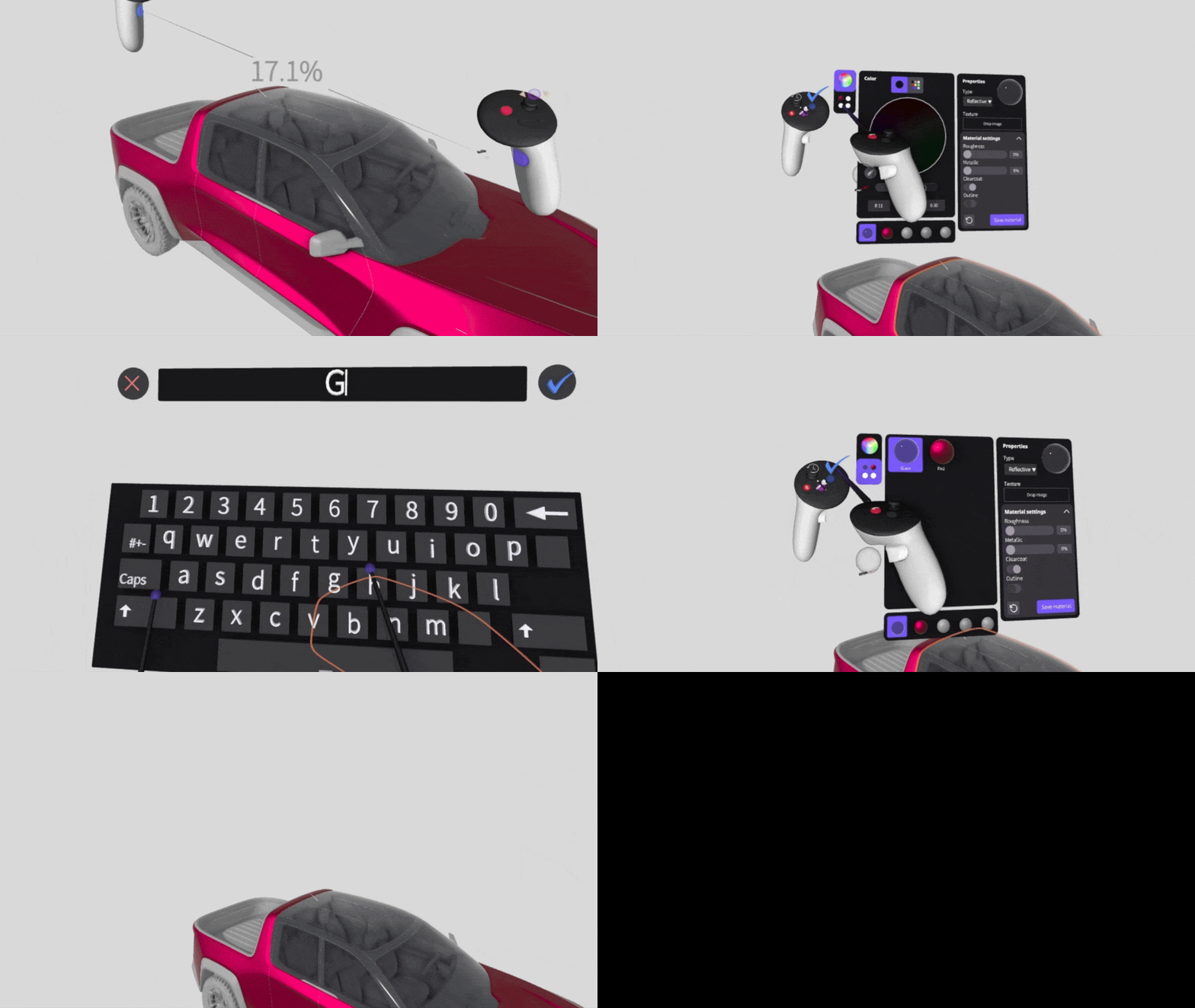
#### Material Panel
Curate and name your own materials utilizing the saved materials panel.
---
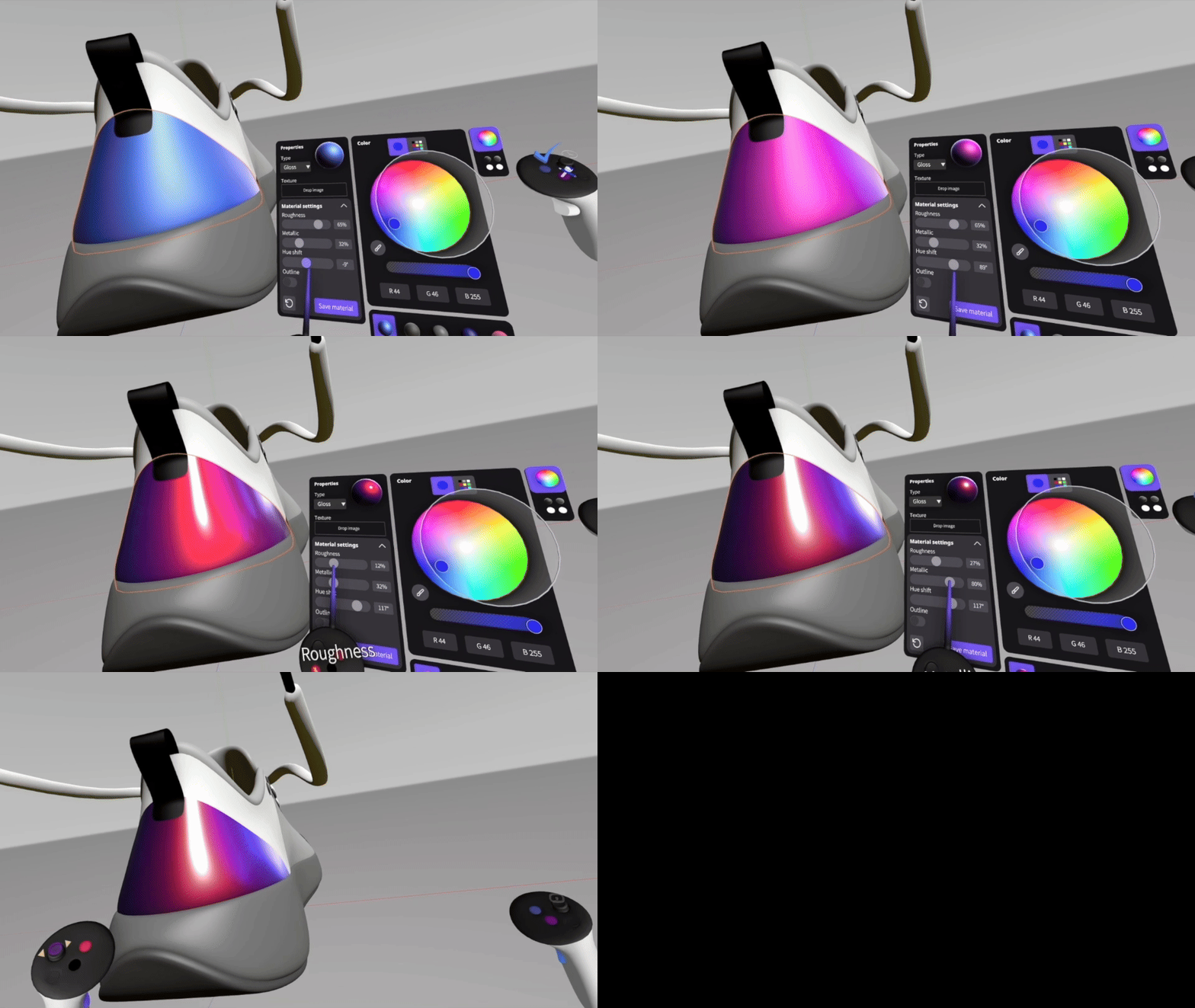
#### Material Properties
Edit material properties such as **roughness, metallic values, outline thickness, and clear coat application**, allowing for more realistic and refined communication of your design intent.
- [Getting started](https://help.gravitysketch.com/getting-started?hsLang=en#main-content)
- [Basic VR Controls](https://help.gravitysketch.com/getting-started?hsLang=en#basic-vr-controls)
- [Starter Resources](https://help.gravitysketch.com/getting-started?hsLang=en#starter-resources)
- [VR Guide](https://help.gravitysketch.com/getting-started?hsLang=en#vr-guide)
- [PC & VR Setup](https://help.gravitysketch.com/getting-started?hsLang=en#pc-vr-setup)
- [Troubleshooting](https://help.gravitysketch.com/troubleshooting?hsLang=en#main-content)
- [Troubleshooting](https://help.gravitysketch.com/troubleshooting?hsLang=en#troubleshooting)
- [FAQs](https://help.gravitysketch.com/troubleshooting?hsLang=en#faqs)
- [What's new?](https://help.gravitysketch.com/whats-new?hsLang=en#main-content)
- [Release Notes](https://help.gravitysketch.com/whats-new?hsLang=en#release-notes)
- [Product Updates & Releases](https://help.gravitysketch.com/whats-new?hsLang=en#product-updates-releases)
- [Creation tools](https://help.gravitysketch.com/creation-tools?hsLang=en#main-content)
- [Explore Workspace](https://help.gravitysketch.com/creation-tools?hsLang=en#explore-workspace)
- [Interact with Objects](https://help.gravitysketch.com/creation-tools?hsLang=en#interact-with-objects)
- [Sketching and Basic Editing](https://help.gravitysketch.com/creation-tools?hsLang=en#sketching-and-basic-editing)
- [Advanced Control](https://help.gravitysketch.com/creation-tools?hsLang=en#advanced-control)
- [SubD Editing](https://help.gravitysketch.com/creation-tools?hsLang=en#subd-editing)
- [File Management](https://help.gravitysketch.com/creation-tools?hsLang=en#file-management)
- [Beta Menu](https://help.gravitysketch.com/creation-tools?hsLang=en#beta-menu)
- [Quick Tips](https://help.gravitysketch.com/creation-tools?hsLang=en#quick-tips)
- [Import & export](https://help.gravitysketch.com/import-export?hsLang=en)
- [Collaboration](https://help.gravitysketch.com/collaboration?hsLang=en#main-content)
- [Collaboration in AR/VR](https://help.gravitysketch.com/collaboration?hsLang=en#collaboration-in-ar-vr)
- [Collaboration on Desktop](https://help.gravitysketch.com/collaboration?hsLang=en#collaboration-on-desktop)
- [Presentation](https://help.gravitysketch.com/collaboration?hsLang=en#presentation)
- [Data & security](https://help.gravitysketch.com/data-security?hsLang=en)
- [Gravity Sketch for businesses](https://help.gravitysketch.com/gravity-sketch-for-businesses?hsLang=en#main-content)
- [Organizations in Gravity Sketch](https://help.gravitysketch.com/gravity-sketch-for-businesses?hsLang=en#organizations-in-gravity-sketch)
- [Enterprise Features](https://help.gravitysketch.com/gravity-sketch-for-businesses?hsLang=en#enterprise-features)
- [Learn Gravity Sketch](https://help.gravitysketch.com/learn-gravity-sketch?hsLang=en#main-content)
- [Certification](https://help.gravitysketch.com/learn-gravity-sketch?hsLang=en#certification)
- [Community](https://help.gravitysketch.com/learn-gravity-sketch?hsLang=en#community)
- [Education](https://help.gravitysketch.com/learn-gravity-sketch?hsLang=en#education)
- [Labs](https://help.gravitysketch.com/labs?hsLang=en#main-content)
- [About Labs](https://help.gravitysketch.com/labs?hsLang=en#about-labs)
[](http://gravitysketch.com)
Copyright © 2026, Gravity Sketch