---
title: Spatial Alignments
description: Learn how to use AR Collab in Gravity Sketch on Quest headsets to host in-person AR design sessions, share point cloud data, and lock/unlock sketches in space.
---
[Skip to content](https://help.gravitysketch.com/hc/en-us/articles/12050956566301-ar-collab#main-content)

Open main navigation
Close main navigation
How can we help you?
- There are no suggestions because the search field is empty.
1. [Gravity Sketch](https://help.gravitysketch.com/?hsLang=en)
2. [Collaboration](https://help.gravitysketch.com/collaboration?hsLang=en)
3. [Collaboration in AR/VR](https://help.gravitysketch.com/collaboration?hsLang=en#collaboration-in-ar-vr)
# Spatial Alignments
## Spatial Alignments are the new way to lock your virtual and real worlds together for more seamless AR sessions.
### Using Spatial Alignment to lock virtual designs to physical space
Spatial Alignment locks your virtual room to your physical space, making it simple to overlay digital models onto real-world objects. This allows you to evaluate human factors, assess scale, and clearly communicate design intent in AR passthrough. Once you've set it up, anyone joining the same room and physical space can use that alignment without starting from scratch.
### Finding your alignments
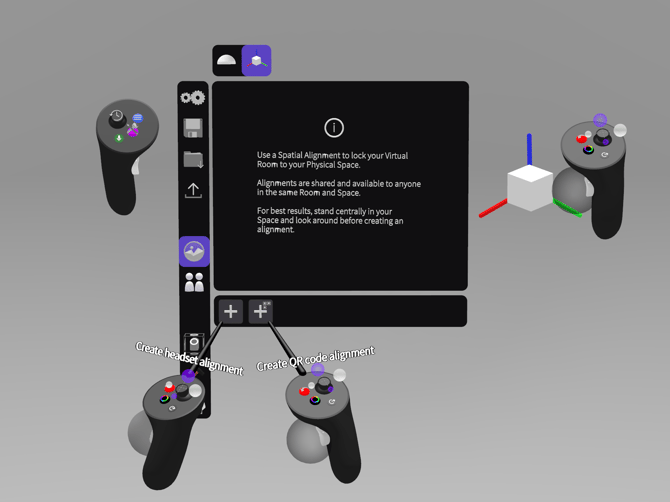
You'll find the dedicated Spatial Alignment tab within the Environment menu. This space gives you a clear view of all your existing alignments at once. It shows you which alignments are active and if teammates are currently using them.
from here you can enter alignments that are available to you in your current physical space.
.png?width=670&height=597&name=Spatial%20Alignment%20-%20Panel%20-%20Switch%20(1).png)
### Creating and managing alignments
To create a new alignment, navigate to the Environment menu and select the Spatial Alignment tab. The headset will guide you through a quick scan to lock your virtual room to the physical space. You can name your alignments to easily identify them when switching spaces.
Alternatively you can grab and place a virtual object which creates a new Alignment. This allows you to grab, reposition, and switch between your alignments without opening menus.
You can also use QR codes as persistent anchors for these alignments. This is especially helpful in large industrial spaces where standard tracking can struggle. For complete instructions on this method, refer to the dedicated [QR codes for Spatial Alignment article](https://help.gravitysketch.com/qr-codes-spatial-alignment?hsLang=en).
When you enter passthrough mode, boundaries are automatically disabled so you can move freely around physical spaces.
### Editing an existing alignment
When you need to adjust positioning, Edit Alignment mode gives you precise tools to get it right. You have access to several controls to align your physical and virtual environments:
- **Gumball**: Precisely transform room content to align physical with virtual
- **Transparency**: Lower transparency to better see far-side edges for alignment
- **Free movement**: Move room content with offhand-grab, or scale with grab-stretch
- **Align sketch to floor**: Automatically moves the lowest part of the data to the real-world floor
### Device compatibility
Spatial Alignment is available to Quest 2, 3, 3S, and Pro users. You can use it in both solo and collaborative AR sessions.
---
#### Passthrough depth occlusion:
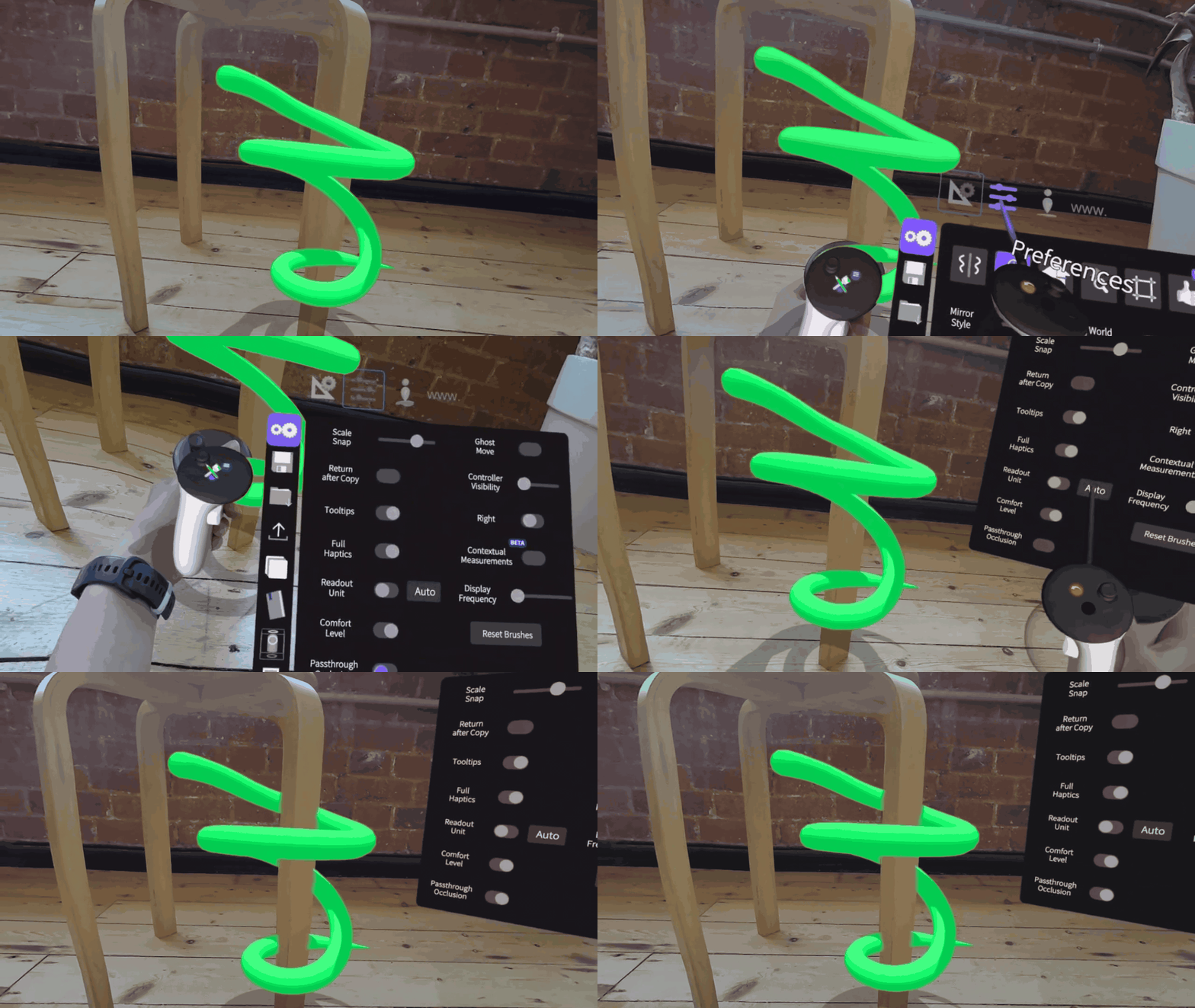
This feature provides an improved mixed reality experience. It better accounts for your surroundings and the interplay between real and virtual worlds. Please note, it is only available on Meta Quest 3 & 3S.
To enable Passthrough depth occlusion:
- Navigate to the settings tab of the general menu
- Toggle "Passthrough Occlusion" on. Please note this remains active across sessions until toggled off or Labs is toggled off
- [Getting started](https://help.gravitysketch.com/getting-started?hsLang=en#main-content)
- [Basic VR Controls](https://help.gravitysketch.com/getting-started?hsLang=en#basic-vr-controls)
- [Starter Resources](https://help.gravitysketch.com/getting-started?hsLang=en#starter-resources)
- [VR Guide](https://help.gravitysketch.com/getting-started?hsLang=en#vr-guide)
- [PC & VR Setup](https://help.gravitysketch.com/getting-started?hsLang=en#pc-vr-setup)
- [Troubleshooting](https://help.gravitysketch.com/troubleshooting?hsLang=en#main-content)
- [Troubleshooting](https://help.gravitysketch.com/troubleshooting?hsLang=en#troubleshooting)
- [FAQs](https://help.gravitysketch.com/troubleshooting?hsLang=en#faqs)
- [What's new?](https://help.gravitysketch.com/whats-new?hsLang=en#main-content)
- [Release Notes](https://help.gravitysketch.com/whats-new?hsLang=en#release-notes)
- [Product Updates & Releases](https://help.gravitysketch.com/whats-new?hsLang=en#product-updates-releases)
- [Creation tools](https://help.gravitysketch.com/creation-tools?hsLang=en#main-content)
- [Explore Workspace](https://help.gravitysketch.com/creation-tools?hsLang=en#explore-workspace)
- [Interact with Objects](https://help.gravitysketch.com/creation-tools?hsLang=en#interact-with-objects)
- [Sketching and Basic Editing](https://help.gravitysketch.com/creation-tools?hsLang=en#sketching-and-basic-editing)
- [Advanced Control](https://help.gravitysketch.com/creation-tools?hsLang=en#advanced-control)
- [SubD Editing](https://help.gravitysketch.com/creation-tools?hsLang=en#subd-editing)
- [File Management](https://help.gravitysketch.com/creation-tools?hsLang=en#file-management)
- [Beta Menu](https://help.gravitysketch.com/creation-tools?hsLang=en#beta-menu)
- [Quick Tips](https://help.gravitysketch.com/creation-tools?hsLang=en#quick-tips)
- [Import & export](https://help.gravitysketch.com/import-export?hsLang=en)
- [Collaboration](https://help.gravitysketch.com/collaboration?hsLang=en#main-content)
- [Collaboration in AR/VR](https://help.gravitysketch.com/collaboration?hsLang=en#collaboration-in-ar-vr)
- [Collaboration on Desktop](https://help.gravitysketch.com/collaboration?hsLang=en#collaboration-on-desktop)
- [Presentation](https://help.gravitysketch.com/collaboration?hsLang=en#presentation)
- [Data & security](https://help.gravitysketch.com/data-security?hsLang=en)
- [Gravity Sketch for businesses](https://help.gravitysketch.com/gravity-sketch-for-businesses?hsLang=en#main-content)
- [Organizations in Gravity Sketch](https://help.gravitysketch.com/gravity-sketch-for-businesses?hsLang=en#organizations-in-gravity-sketch)
- [Enterprise Features](https://help.gravitysketch.com/gravity-sketch-for-businesses?hsLang=en#enterprise-features)
- [Learn Gravity Sketch](https://help.gravitysketch.com/learn-gravity-sketch?hsLang=en#main-content)
- [Certification](https://help.gravitysketch.com/learn-gravity-sketch?hsLang=en#certification)
- [Community](https://help.gravitysketch.com/learn-gravity-sketch?hsLang=en#community)
- [Education](https://help.gravitysketch.com/learn-gravity-sketch?hsLang=en#education)
- [Labs](https://help.gravitysketch.com/labs?hsLang=en#main-content)
- [About Labs](https://help.gravitysketch.com/labs?hsLang=en#about-labs)
[](http://gravitysketch.com)
Copyright © 2026, Gravity Sketch