---
title: Launching Gravity Sketch With SteamVR
description: Fix SteamLink and SteamVR issues in Gravity Sketch by adjusting OpenXR settings and disabling the OculusXR compatibility layer.
---
[Skip to content](https://help.gravitysketch.com/hc/en-us/articles/28107199971229-launching-gravity-sketch-with-steamvr#main-content)

Open main navigation
Close main navigation
How can we help you?
- There are no suggestions because the search field is empty.
1. [Gravity Sketch](https://help.gravitysketch.com/?hsLang=en)
2. [Troubleshooting](https://help.gravitysketch.com/troubleshooting?hsLang=en)
3. [Troubleshooting](https://help.gravitysketch.com/troubleshooting?hsLang=en#troubleshooting)
# Launching Gravity Sketch With SteamVR
### **Launching Gravity Sketch with SteamVR — Troubleshooting Guide**
If Gravity Sketch does not launch correctly through SteamVR, we have found that this can be due to SteamVR’s OpenXR settings or compatibility layers interfering with the app. This guide shows you how to fix common configuration issues.
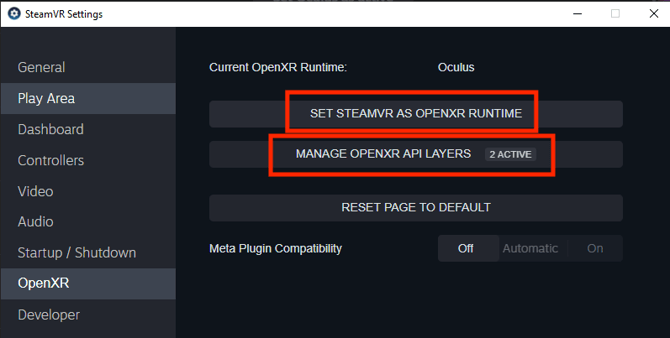
#### **1. Check SteamVR OpenXR Runtime**
1. Open SteamVR and go to **Settings**.
2. Find the **OpenXR** section.
3. Set **SteamVR as the OpenXR runtime** (this ensures SteamVR is selected to handle OpenXR applications correctly).
4. Confirm the change and restart SteamVR.
> *Note:* If SteamVR isn’t listed as the OpenXR runtime, you may need to update SteamVR or your headset drivers.
---
#### **2. Disable OculusXR Compatibility Layer**
1. In SteamVR settings, select **Manage OpenXR API Layers**.
2. Turn **OFF “Compatibility Layer for the OculusXR Plugin”**.
3. This layer can redirect OpenXR calls in ways that break controller orientation or block apps from launching correctly.
---
#### **3. Relaunch Gravity Sketch**
- After doing the above, launch Gravity Sketch again from your Steam library while SteamVR is running.
---
#### **4. Additional Help**
- If problems persist, visit the Gravity Sketch VR Guide or PC & VR setup articles for step-by-step setup tutorials.
- You can also contact support at **support@gravitysketch.com**.
- [Getting started](https://help.gravitysketch.com/getting-started?hsLang=en#main-content)
- [Basic VR Controls](https://help.gravitysketch.com/getting-started?hsLang=en#basic-vr-controls)
- [Starter Resources](https://help.gravitysketch.com/getting-started?hsLang=en#starter-resources)
- [VR Guide](https://help.gravitysketch.com/getting-started?hsLang=en#vr-guide)
- [PC & VR Setup](https://help.gravitysketch.com/getting-started?hsLang=en#pc-vr-setup)
- [Troubleshooting](https://help.gravitysketch.com/troubleshooting?hsLang=en#main-content)
- [Troubleshooting](https://help.gravitysketch.com/troubleshooting?hsLang=en#troubleshooting)
- [FAQs](https://help.gravitysketch.com/troubleshooting?hsLang=en#faqs)
- [What's new?](https://help.gravitysketch.com/whats-new?hsLang=en#main-content)
- [Release Notes](https://help.gravitysketch.com/whats-new?hsLang=en#release-notes)
- [Product Updates & Releases](https://help.gravitysketch.com/whats-new?hsLang=en#product-updates-releases)
- [Creation tools](https://help.gravitysketch.com/creation-tools?hsLang=en#main-content)
- [Explore Workspace](https://help.gravitysketch.com/creation-tools?hsLang=en#explore-workspace)
- [Interact with Objects](https://help.gravitysketch.com/creation-tools?hsLang=en#interact-with-objects)
- [Sketching and Basic Editing](https://help.gravitysketch.com/creation-tools?hsLang=en#sketching-and-basic-editing)
- [Advanced Control](https://help.gravitysketch.com/creation-tools?hsLang=en#advanced-control)
- [SubD Editing](https://help.gravitysketch.com/creation-tools?hsLang=en#subd-editing)
- [File Management](https://help.gravitysketch.com/creation-tools?hsLang=en#file-management)
- [Beta Menu](https://help.gravitysketch.com/creation-tools?hsLang=en#beta-menu)
- [Quick Tips](https://help.gravitysketch.com/creation-tools?hsLang=en#quick-tips)
- [Import & export](https://help.gravitysketch.com/import-export?hsLang=en)
- [Collaboration](https://help.gravitysketch.com/collaboration?hsLang=en#main-content)
- [Collaboration in AR/VR](https://help.gravitysketch.com/collaboration?hsLang=en#collaboration-in-ar-vr)
- [Collaboration on Desktop](https://help.gravitysketch.com/collaboration?hsLang=en#collaboration-on-desktop)
- [Presentation](https://help.gravitysketch.com/collaboration?hsLang=en#presentation)
- [Data & security](https://help.gravitysketch.com/data-security?hsLang=en)
- [Gravity Sketch for businesses](https://help.gravitysketch.com/gravity-sketch-for-businesses?hsLang=en#main-content)
- [Organizations in Gravity Sketch](https://help.gravitysketch.com/gravity-sketch-for-businesses?hsLang=en#organizations-in-gravity-sketch)
- [Enterprise Features](https://help.gravitysketch.com/gravity-sketch-for-businesses?hsLang=en#enterprise-features)
- [Learn Gravity Sketch](https://help.gravitysketch.com/learn-gravity-sketch?hsLang=en#main-content)
- [Certification](https://help.gravitysketch.com/learn-gravity-sketch?hsLang=en#certification)
- [Community](https://help.gravitysketch.com/learn-gravity-sketch?hsLang=en#community)
- [Education](https://help.gravitysketch.com/learn-gravity-sketch?hsLang=en#education)
- [Labs](https://help.gravitysketch.com/labs?hsLang=en#main-content)
- [About Labs](https://help.gravitysketch.com/labs?hsLang=en#about-labs)
[](http://gravitysketch.com)
Copyright © 2026, Gravity Sketch