---
title: Create Collab Room
description: Learn how to create Collab Rooms in Gravity Sketch VR or LandingPad.me, manage privacy, and share unique codes with collaborators.
---
[Skip to content](https://help.gravitysketch.com/hc/en-us/articles/5887943019805-create-collab-room#main-content)

Open main navigation
Close main navigation
How can we help you?
- There are no suggestions because the search field is empty.
1. [Gravity Sketch](https://help.gravitysketch.com/?hsLang=en)
2. [Collaboration](https://help.gravitysketch.com/collaboration?hsLang=en)
3. [Collaboration in AR/VR](https://help.gravitysketch.com/collaboration?hsLang=en#collaboration-in-ar-vr)
# Create Collab Room
You can create new Collab rooms either in Gravity Sketch VR or directly from **[landingpad.me](http://landingpad.me/)**. Rooms can be private or public, and each room now has a unique share code you can send to collaborators.
#### Create a room in VR
### LandingPad Collab (Free)
1. From the Lobby, select **LandingPad Collab**.
2. Click the **+ icon** in the top right corner to create a new room.
3. Your room will appear in the LandingPad Collab panel. By default, the name includes your username (e.g. “Demo’s Collab”).
Your room will be highlighted with a crown icon, showing you are the owner. Rooms you are invited to will appear alongside it.
### Collab for Business
1. From the Lobby, select **LandingPad Collab**.
2. Click the **+ icon** in the top right corner to create a room.
3. Name the room and confirm.
4. The room will appear in the LandingPad Collab panel for your organisation.
---
#### Create a room on LandingPad.me
### LandingPad Collab (Free)
To create a room in your browser:
1. Go to [landingpad.me](https://landingpad.me/) and log in.
2. Select **My Files**.
3. Click the **+ button** in the top right corner.
4. Select **New Collab Room**.
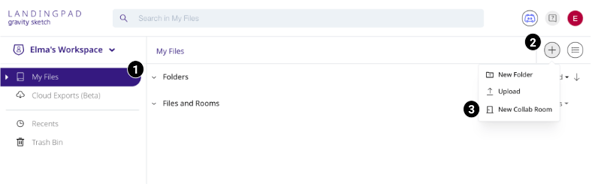
Your room will appear in the **Files and Rooms** section on LandingPad and will also be available in VR.
### Collab for Business
Organisation admins can create rooms either in the shared org space or within specific teams:
1. Select the organisation or team space where you want the room.
2. Click the **+ button** in the top right corner.
3. Select **New Collab Room**.
4. Enter a name for the room and select **Create**.
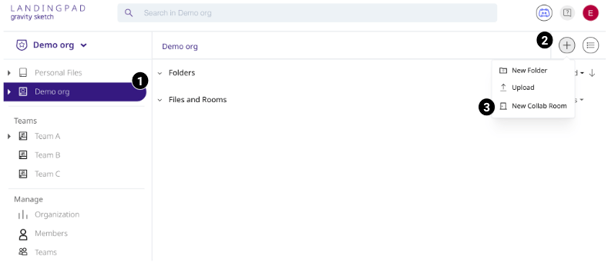
A similar process applies when creating Collab rooms in Teams. Select the team first, then click the + button, choose New Collab Room, and name it.
Rooms in shared organisation space are accessible to all members of the organisation. Admins can also lock rooms with a password if needed.
---
#### Public Rooms and Share Codes
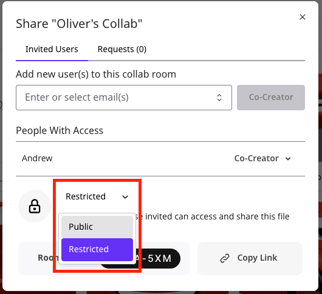
- **Public Room Toggle** – When creating a room, you can choose to make it *public* (discoverable by anyone in your organisation or community) or keep it *private* (only accessible via invite or unique share code).
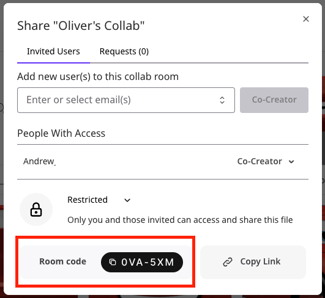
- **Unique Share Code** – Every room now has a unique code that you can share. Users with the code can join directly without searching through lists
- [Getting started](https://help.gravitysketch.com/getting-started?hsLang=en#main-content)
- [Basic VR Controls](https://help.gravitysketch.com/getting-started?hsLang=en#basic-vr-controls)
- [Starter Resources](https://help.gravitysketch.com/getting-started?hsLang=en#starter-resources)
- [VR Guide](https://help.gravitysketch.com/getting-started?hsLang=en#vr-guide)
- [PC & VR Setup](https://help.gravitysketch.com/getting-started?hsLang=en#pc-vr-setup)
- [Troubleshooting](https://help.gravitysketch.com/troubleshooting?hsLang=en#main-content)
- [Troubleshooting](https://help.gravitysketch.com/troubleshooting?hsLang=en#troubleshooting)
- [FAQs](https://help.gravitysketch.com/troubleshooting?hsLang=en#faqs)
- [What's new?](https://help.gravitysketch.com/whats-new?hsLang=en#main-content)
- [Release Notes](https://help.gravitysketch.com/whats-new?hsLang=en#release-notes)
- [Product Updates & Releases](https://help.gravitysketch.com/whats-new?hsLang=en#product-updates-releases)
- [Creation tools](https://help.gravitysketch.com/creation-tools?hsLang=en#main-content)
- [Explore Workspace](https://help.gravitysketch.com/creation-tools?hsLang=en#explore-workspace)
- [Interact with Objects](https://help.gravitysketch.com/creation-tools?hsLang=en#interact-with-objects)
- [Sketching and Basic Editing](https://help.gravitysketch.com/creation-tools?hsLang=en#sketching-and-basic-editing)
- [Advanced Control](https://help.gravitysketch.com/creation-tools?hsLang=en#advanced-control)
- [SubD Editing](https://help.gravitysketch.com/creation-tools?hsLang=en#subd-editing)
- [File Management](https://help.gravitysketch.com/creation-tools?hsLang=en#file-management)
- [Beta Menu](https://help.gravitysketch.com/creation-tools?hsLang=en#beta-menu)
- [Quick Tips](https://help.gravitysketch.com/creation-tools?hsLang=en#quick-tips)
- [Import & export](https://help.gravitysketch.com/import-export?hsLang=en)
- [Collaboration](https://help.gravitysketch.com/collaboration?hsLang=en#main-content)
- [Collaboration in AR/VR](https://help.gravitysketch.com/collaboration?hsLang=en#collaboration-in-ar-vr)
- [Collaboration on Desktop](https://help.gravitysketch.com/collaboration?hsLang=en#collaboration-on-desktop)
- [Presentation](https://help.gravitysketch.com/collaboration?hsLang=en#presentation)
- [Data & security](https://help.gravitysketch.com/data-security?hsLang=en)
- [Gravity Sketch for businesses](https://help.gravitysketch.com/gravity-sketch-for-businesses?hsLang=en#main-content)
- [Organizations in Gravity Sketch](https://help.gravitysketch.com/gravity-sketch-for-businesses?hsLang=en#organizations-in-gravity-sketch)
- [Enterprise Features](https://help.gravitysketch.com/gravity-sketch-for-businesses?hsLang=en#enterprise-features)
- [Learn Gravity Sketch](https://help.gravitysketch.com/learn-gravity-sketch?hsLang=en#main-content)
- [Certification](https://help.gravitysketch.com/learn-gravity-sketch?hsLang=en#certification)
- [Community](https://help.gravitysketch.com/learn-gravity-sketch?hsLang=en#community)
- [Education](https://help.gravitysketch.com/learn-gravity-sketch?hsLang=en#education)
- [Labs](https://help.gravitysketch.com/labs?hsLang=en#main-content)
- [About Labs](https://help.gravitysketch.com/labs?hsLang=en#about-labs)
[](http://gravitysketch.com)
Copyright © 2026, Gravity Sketch