---
title: Invite and Remove Users
description: Learn how to invite or remove users from your Gravity Sketch Collab room, share access links, and manage requests via LandingPad.
---
[Skip to content](https://help.gravitysketch.com/hc/en-us/articles/5888038757917-invite-and-remove-users#main-content)

Open main navigation
Close main navigation
How can we help you?
- There are no suggestions because the search field is empty.
1. [Gravity Sketch](https://help.gravitysketch.com/?hsLang=en)
2. [Gravity Sketch for businesses](https://help.gravitysketch.com/gravity-sketch-for-businesses?hsLang=en)
3. [Organizations in Gravity Sketch](https://help.gravitysketch.com/gravity-sketch-for-businesses?hsLang=en#organizations-in-gravity-sketch)
# Invite and Remove Users
### app.gravitysketch.com
#### Introduction
You can invite or remove users from your room on app.gravitysketch.com. This will give or deny them access to your room.
---
#### Invite Users
To invite users into your Collab room, open your browser, go to app.gravitysketch.com and log into your account.
1\. Go to "My Files"
2\. Right-click on your Collab room
3\. Click on the "Share"

4\. Enter the email address (you can add multiple addresses at the same time) and click Invite.
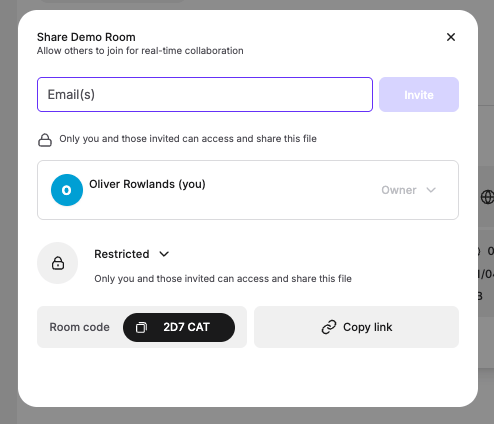
Once the invite is sent, they'll receive an invite email and once accepted the room will then appear on their account (on app.gravitysketch.com and in their VR space).
---
### Share a link to your room
You can give access to your Collab room(s) by sharing a link with other users:
1\. Select your room
2\. Select Copy Invite Link button at the top and share it with other users
3\. If the room you're sharing isn't public they'll have to request access first.
4\. You'll receive their request in the Requests tab. Select the green check mark to Approve or the red cross to Deny it.
---
#### Remove Users
You can remove access to your room by following the next steps:
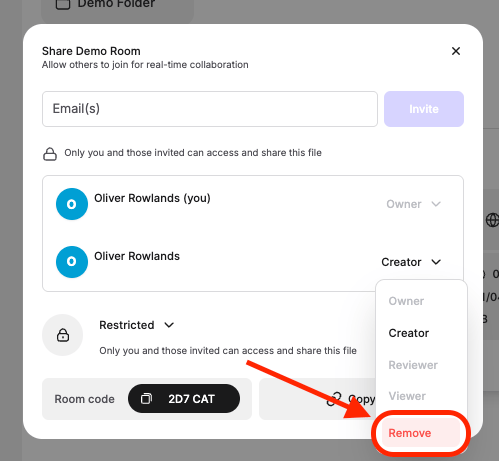
1\. Select your room and click on the Share Collab Room button.
2\. Click on the role of the user on the list of People With Access
3\. Select Remove
---
### LandingPad.me
#### Introduction
You can invite or remove users from your room on LandingPad.me. This will give or deny them access to your room.
---
#### Invite Users
To invite users into your Collab room, open your browser, go to landingpad.me and log into your account.
1\. Go to My Files and select Files and Rooms
2\. Click on your Collab room (highlighted with a crown icon)
3\. Click on the Share Collab Room button at the top of the page
-3.png?width=561&height=235&name=mceclip0%20(3)-3.png)
4\. Enter the email address (you can add multiple addresses at the same time) and click Send Invites button.
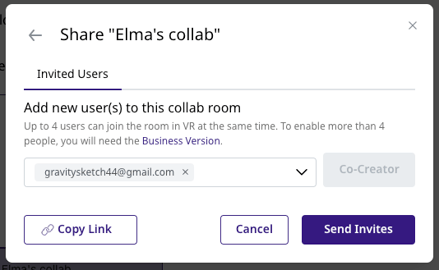
Once the invite is sent, they'll receive an invite email and the room will then appear on their LandingPad account (on landingpad.me and in VR space).
---
### Share a link to your room
You can give access to your Collab room(s) by sharing a link with other users:
1\. Select your room
2\. Select Copy Invite Link button at the top and share it with other users
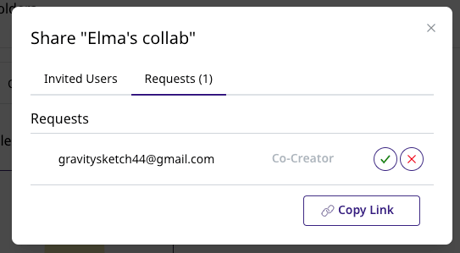
3\. If the room you're sharing isn't [public](https://gravitysketch.zendesk.com/hc/en-us/articles/5888111218461) they'll have to request access first (see the screenshot).
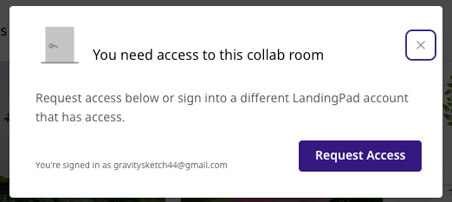
4\. You'll receive their request in the Requests tab. Select the green check mark to Approve or the red cross to Deny it.
#### Remove Users
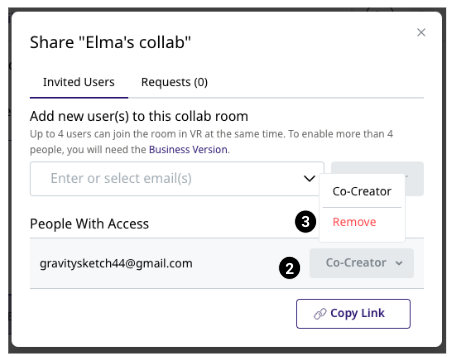
You can remove access to your room by following the next steps:
1\. Select your Collab room and click on the Share Collab Room button at the top right
2\. Click on the role of the user on the list of People With Access
3\. Select Remove
- [Getting started](https://help.gravitysketch.com/getting-started?hsLang=en#main-content)
- [Basic VR Controls](https://help.gravitysketch.com/getting-started?hsLang=en#basic-vr-controls)
- [Starter Resources](https://help.gravitysketch.com/getting-started?hsLang=en#starter-resources)
- [VR Guide](https://help.gravitysketch.com/getting-started?hsLang=en#vr-guide)
- [PC & VR Setup](https://help.gravitysketch.com/getting-started?hsLang=en#pc-vr-setup)
- [Troubleshooting](https://help.gravitysketch.com/troubleshooting?hsLang=en#main-content)
- [Troubleshooting](https://help.gravitysketch.com/troubleshooting?hsLang=en#troubleshooting)
- [FAQs](https://help.gravitysketch.com/troubleshooting?hsLang=en#faqs)
- [What's new?](https://help.gravitysketch.com/whats-new?hsLang=en#main-content)
- [Release Notes](https://help.gravitysketch.com/whats-new?hsLang=en#release-notes)
- [Product Updates & Releases](https://help.gravitysketch.com/whats-new?hsLang=en#product-updates-releases)
- [Creation tools](https://help.gravitysketch.com/creation-tools?hsLang=en#main-content)
- [Explore Workspace](https://help.gravitysketch.com/creation-tools?hsLang=en#explore-workspace)
- [Interact with Objects](https://help.gravitysketch.com/creation-tools?hsLang=en#interact-with-objects)
- [Sketching and Basic Editing](https://help.gravitysketch.com/creation-tools?hsLang=en#sketching-and-basic-editing)
- [Advanced Control](https://help.gravitysketch.com/creation-tools?hsLang=en#advanced-control)
- [SubD Editing](https://help.gravitysketch.com/creation-tools?hsLang=en#subd-editing)
- [File Management](https://help.gravitysketch.com/creation-tools?hsLang=en#file-management)
- [Beta Menu](https://help.gravitysketch.com/creation-tools?hsLang=en#beta-menu)
- [Quick Tips](https://help.gravitysketch.com/creation-tools?hsLang=en#quick-tips)
- [Import & export](https://help.gravitysketch.com/import-export?hsLang=en)
- [Collaboration](https://help.gravitysketch.com/collaboration?hsLang=en#main-content)
- [Collaboration in AR/VR](https://help.gravitysketch.com/collaboration?hsLang=en#collaboration-in-ar-vr)
- [Collaboration on Desktop](https://help.gravitysketch.com/collaboration?hsLang=en#collaboration-on-desktop)
- [Presentation](https://help.gravitysketch.com/collaboration?hsLang=en#presentation)
- [Data & security](https://help.gravitysketch.com/data-security?hsLang=en)
- [Gravity Sketch for businesses](https://help.gravitysketch.com/gravity-sketch-for-businesses?hsLang=en#main-content)
- [Organizations in Gravity Sketch](https://help.gravitysketch.com/gravity-sketch-for-businesses?hsLang=en#organizations-in-gravity-sketch)
- [Enterprise Features](https://help.gravitysketch.com/gravity-sketch-for-businesses?hsLang=en#enterprise-features)
- [Learn Gravity Sketch](https://help.gravitysketch.com/learn-gravity-sketch?hsLang=en#main-content)
- [Certification](https://help.gravitysketch.com/learn-gravity-sketch?hsLang=en#certification)
- [Community](https://help.gravitysketch.com/learn-gravity-sketch?hsLang=en#community)
- [Education](https://help.gravitysketch.com/learn-gravity-sketch?hsLang=en#education)
- [Labs](https://help.gravitysketch.com/labs?hsLang=en#main-content)
- [About Labs](https://help.gravitysketch.com/labs?hsLang=en#about-labs)
[](http://gravitysketch.com)
Copyright © 2026, Gravity Sketch