---
title: Saving locally on your VR Headset
description: Learn how to save and access Gravity Sketch files locally on VR headsets with step-by-step guides for PC, Mac, and tethered setups.
---
[Skip to content](https://help.gravitysketch.com/hc/en-us/articles/5902347909661-saving-locally-on-your-vr-headset#main-content)

Open main navigation
Close main navigation
How can we help you?
- There are no suggestions because the search field is empty.
1. [Gravity Sketch](https://help.gravitysketch.com/?hsLang=en)
2. [Troubleshooting](https://help.gravitysketch.com/troubleshooting?hsLang=en)
3. [FAQs](https://help.gravitysketch.com/troubleshooting?hsLang=en#faqs)
# Saving locally on your VR Headset
To save or export your files locally on your VR Headset, first make sure you are saving to Local Storage.
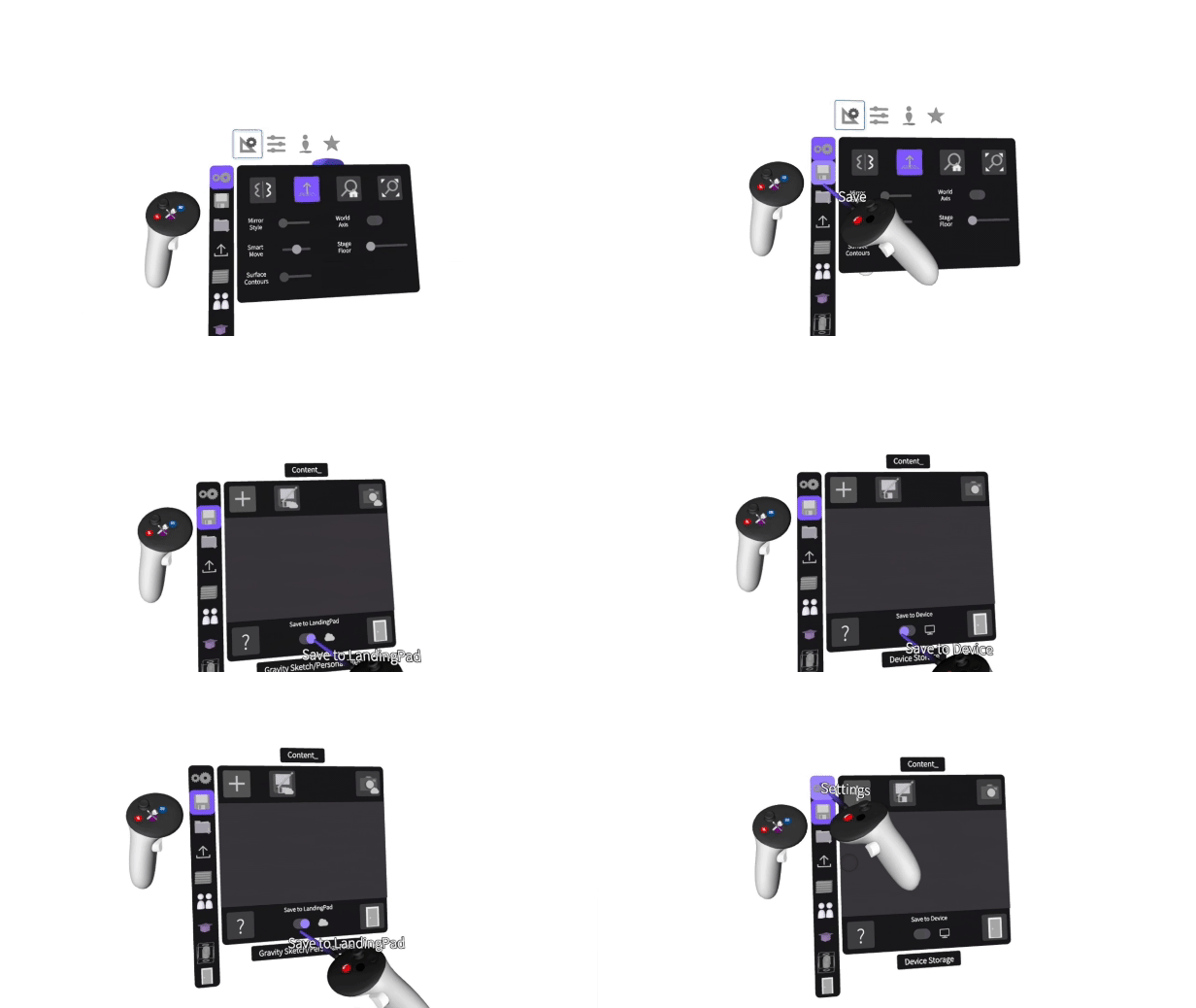
To access files saved locally on your VR Headset, please follow the instructions below:
---
**PC Users**
1. Plug your VR Headset into your computer (Using the USB cable).
1. Put your headset on. You will see a message requesting permission to allow the connected device to have access to the files on this headset. Click Allow.
1. Go back to your computer and your headset will come up like any other device.
2. Double click on Internal shared storage and you will find the Gravity Sketch folder with all of your content in it.
---
**Mac Users**
1. Download your preferred software for transferring files from an Android Device to a Mac ([https://www.macworld.co.uk/how-to/mac-software/transfer-android-mac-3683573/](https://www.macworld.co.uk/how-to/mac-software/transfer-android-mac-3683573/)).
1. Plug your VR Headset into your computer (using the USB cable).
1. Put your headset on. You will see a message requesting permission to allow the connected device to have access to the files on this headset. Select Allow.
1. Go back to your computer and your headset will come up like any other device.
2. Double click on Internal shared storage and you will find the Gravity Sketch folder with all of your content in it.
---
**Tethered VR Headset**
If you are using a tethered headset, there is a slight difference when accessing the file.
While tethered and Gravity Sketch running, make sure you're not in a sketch or a collab room. A menu will appear on your PC screen. Select the File option on the left side. You will find all of your content saved locally in the folders on the right side.
.png?width=654&height=368&name=mceclip0%20(6).png)
- [Getting started](https://help.gravitysketch.com/getting-started?hsLang=en#main-content)
- [Basic VR Controls](https://help.gravitysketch.com/getting-started?hsLang=en#basic-vr-controls)
- [Starter Resources](https://help.gravitysketch.com/getting-started?hsLang=en#starter-resources)
- [VR Guide](https://help.gravitysketch.com/getting-started?hsLang=en#vr-guide)
- [PC & VR Setup](https://help.gravitysketch.com/getting-started?hsLang=en#pc-vr-setup)
- [Troubleshooting](https://help.gravitysketch.com/troubleshooting?hsLang=en#main-content)
- [Troubleshooting](https://help.gravitysketch.com/troubleshooting?hsLang=en#troubleshooting)
- [FAQs](https://help.gravitysketch.com/troubleshooting?hsLang=en#faqs)
- [What's new?](https://help.gravitysketch.com/whats-new?hsLang=en#main-content)
- [Release Notes](https://help.gravitysketch.com/whats-new?hsLang=en#release-notes)
- [Product Updates & Releases](https://help.gravitysketch.com/whats-new?hsLang=en#product-updates-releases)
- [Creation tools](https://help.gravitysketch.com/creation-tools?hsLang=en#main-content)
- [Explore Workspace](https://help.gravitysketch.com/creation-tools?hsLang=en#explore-workspace)
- [Interact with Objects](https://help.gravitysketch.com/creation-tools?hsLang=en#interact-with-objects)
- [Sketching and Basic Editing](https://help.gravitysketch.com/creation-tools?hsLang=en#sketching-and-basic-editing)
- [Advanced Control](https://help.gravitysketch.com/creation-tools?hsLang=en#advanced-control)
- [SubD Editing](https://help.gravitysketch.com/creation-tools?hsLang=en#subd-editing)
- [File Management](https://help.gravitysketch.com/creation-tools?hsLang=en#file-management)
- [Beta Menu](https://help.gravitysketch.com/creation-tools?hsLang=en#beta-menu)
- [Quick Tips](https://help.gravitysketch.com/creation-tools?hsLang=en#quick-tips)
- [Import & export](https://help.gravitysketch.com/import-export?hsLang=en)
- [Collaboration](https://help.gravitysketch.com/collaboration?hsLang=en#main-content)
- [Collaboration in AR/VR](https://help.gravitysketch.com/collaboration?hsLang=en#collaboration-in-ar-vr)
- [Collaboration on Desktop](https://help.gravitysketch.com/collaboration?hsLang=en#collaboration-on-desktop)
- [Presentation](https://help.gravitysketch.com/collaboration?hsLang=en#presentation)
- [Data & security](https://help.gravitysketch.com/data-security?hsLang=en)
- [Gravity Sketch for businesses](https://help.gravitysketch.com/gravity-sketch-for-businesses?hsLang=en#main-content)
- [Organizations in Gravity Sketch](https://help.gravitysketch.com/gravity-sketch-for-businesses?hsLang=en#organizations-in-gravity-sketch)
- [Enterprise Features](https://help.gravitysketch.com/gravity-sketch-for-businesses?hsLang=en#enterprise-features)
- [Learn Gravity Sketch](https://help.gravitysketch.com/learn-gravity-sketch?hsLang=en#main-content)
- [Certification](https://help.gravitysketch.com/learn-gravity-sketch?hsLang=en#certification)
- [Community](https://help.gravitysketch.com/learn-gravity-sketch?hsLang=en#community)
- [Education](https://help.gravitysketch.com/learn-gravity-sketch?hsLang=en#education)
- [Labs](https://help.gravitysketch.com/labs?hsLang=en#main-content)
- [About Labs](https://help.gravitysketch.com/labs?hsLang=en#about-labs)
[](http://gravitysketch.com)
Copyright © 2026, Gravity Sketch