---
title: File Manager
description: Learn how to use the File Manager to browse, organize, search, and rename personal, shared, and local files in Screen Collab.
---
[Skip to content](https://help.gravitysketch.com/hc/en-us/articles/5902563692317-file-manager#main-content)

Open main navigation
Close main navigation
How can we help you?
- There are no suggestions because the search field is empty.
1. [Gravity Sketch](https://help.gravitysketch.com/?hsLang=en)
2. [Creation tools](https://help.gravitysketch.com/creation-tools?hsLang=en)
3. [File Management](https://help.gravitysketch.com/creation-tools?hsLang=en#file-management)
# File Manager
## Introduction
You can browse and organize files, and access all your sketches and imported models directly from the File Manager.
---
#### Access
When in the Lobby, select File Manager.

---
#### File Manager menu
Browse and organize your personal files in File Manager.
Enterprise users can here browse and organize all their shared files.
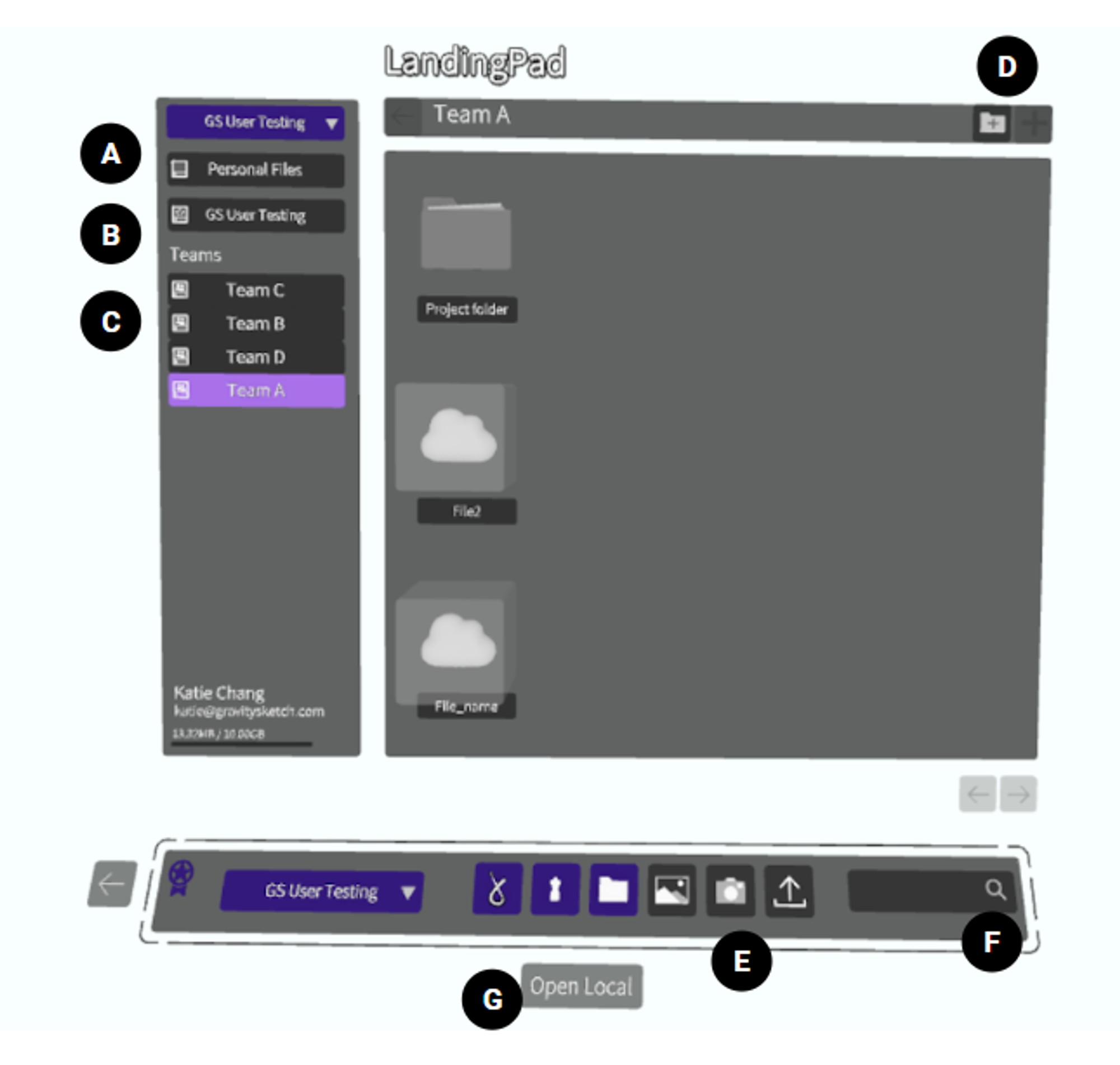
**A. Personal files:** Select the “Personal Files” tab to view and organize all your personal sketches and files
**B.** **Organization shared files (Business version only)**: Select the organization tab to view and organize files shared with all members in the organization
**C.** **Team shared files (Business version only)**: Select the team tab to view and organize files shared with members of the team
**D.** **Create a folder/New Sketch**: Create folders to organize the files. With plus sign create and enter a new sketch
**E.** **Filters**: Use filters to find the file types you are looking for
**F.** **Search**: Search by file name
**G.** **Open/Close Local**: Click to open or close local storage
---
#### Local Storage
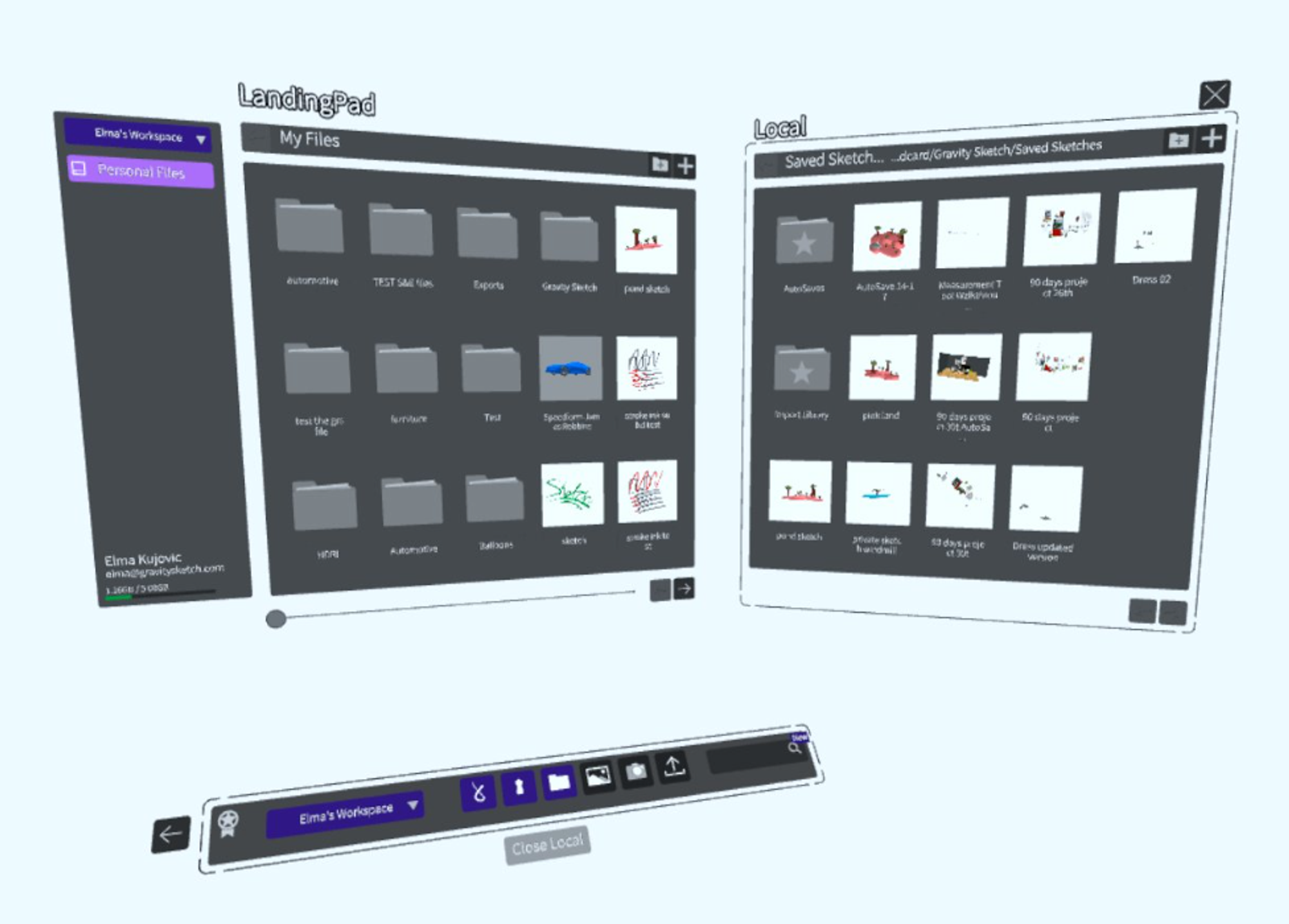
To access Local Storage click on the Open Local (G above) button. Here you can browse and access **[AutoSaves](https://help.gravitysketch.com/hc/en-us/articles/5902579394461?hsLang=en)**, Import Library (all files imported locally), as well as all the sketches, screenshots, and exports saved locally.
#### Rename Folders and Files
Rename any folder or file in File Manager by grabbing it and selecting the blue button to open the **[Keyboard](https://help.gravitysketch.com/hc/en-us/articles/5912609882653?hsLang=en)**. Type in the new name and tap on the check mark.

- [Getting started](https://help.gravitysketch.com/getting-started?hsLang=en#main-content)
- [Basic VR Controls](https://help.gravitysketch.com/getting-started?hsLang=en#basic-vr-controls)
- [Starter Resources](https://help.gravitysketch.com/getting-started?hsLang=en#starter-resources)
- [VR Guide](https://help.gravitysketch.com/getting-started?hsLang=en#vr-guide)
- [PC & VR Setup](https://help.gravitysketch.com/getting-started?hsLang=en#pc-vr-setup)
- [Troubleshooting](https://help.gravitysketch.com/troubleshooting?hsLang=en#main-content)
- [Troubleshooting](https://help.gravitysketch.com/troubleshooting?hsLang=en#troubleshooting)
- [FAQs](https://help.gravitysketch.com/troubleshooting?hsLang=en#faqs)
- [What's new?](https://help.gravitysketch.com/whats-new?hsLang=en#main-content)
- [Release Notes](https://help.gravitysketch.com/whats-new?hsLang=en#release-notes)
- [Product Updates & Releases](https://help.gravitysketch.com/whats-new?hsLang=en#product-updates-releases)
- [Creation tools](https://help.gravitysketch.com/creation-tools?hsLang=en#main-content)
- [Explore Workspace](https://help.gravitysketch.com/creation-tools?hsLang=en#explore-workspace)
- [Interact with Objects](https://help.gravitysketch.com/creation-tools?hsLang=en#interact-with-objects)
- [Sketching and Basic Editing](https://help.gravitysketch.com/creation-tools?hsLang=en#sketching-and-basic-editing)
- [Advanced Control](https://help.gravitysketch.com/creation-tools?hsLang=en#advanced-control)
- [SubD Editing](https://help.gravitysketch.com/creation-tools?hsLang=en#subd-editing)
- [File Management](https://help.gravitysketch.com/creation-tools?hsLang=en#file-management)
- [Beta Menu](https://help.gravitysketch.com/creation-tools?hsLang=en#beta-menu)
- [Quick Tips](https://help.gravitysketch.com/creation-tools?hsLang=en#quick-tips)
- [Import & export](https://help.gravitysketch.com/import-export?hsLang=en)
- [Collaboration](https://help.gravitysketch.com/collaboration?hsLang=en#main-content)
- [Collaboration in AR/VR](https://help.gravitysketch.com/collaboration?hsLang=en#collaboration-in-ar-vr)
- [Collaboration on Desktop](https://help.gravitysketch.com/collaboration?hsLang=en#collaboration-on-desktop)
- [Presentation](https://help.gravitysketch.com/collaboration?hsLang=en#presentation)
- [Data & security](https://help.gravitysketch.com/data-security?hsLang=en)
- [Gravity Sketch for businesses](https://help.gravitysketch.com/gravity-sketch-for-businesses?hsLang=en#main-content)
- [Organizations in Gravity Sketch](https://help.gravitysketch.com/gravity-sketch-for-businesses?hsLang=en#organizations-in-gravity-sketch)
- [Enterprise Features](https://help.gravitysketch.com/gravity-sketch-for-businesses?hsLang=en#enterprise-features)
- [Learn Gravity Sketch](https://help.gravitysketch.com/learn-gravity-sketch?hsLang=en#main-content)
- [Certification](https://help.gravitysketch.com/learn-gravity-sketch?hsLang=en#certification)
- [Community](https://help.gravitysketch.com/learn-gravity-sketch?hsLang=en#community)
- [Education](https://help.gravitysketch.com/learn-gravity-sketch?hsLang=en#education)
- [Labs](https://help.gravitysketch.com/labs?hsLang=en#main-content)
- [About Labs](https://help.gravitysketch.com/labs?hsLang=en#about-labs)
[](http://gravitysketch.com)
Copyright © 2026, Gravity Sketch