---
title: Axis Control
description: Learn how to use the Revolve tool in Gravity Sketch, set and snap axes, align to world or reference images, and recover axes for precision.
---
[Skip to content](https://help.gravitysketch.com/hc/en-us/articles/5902582768925-axis-control#main-content)

Open main navigation
Close main navigation
How can we help you?
- There are no suggestions because the search field is empty.
1. [Gravity Sketch](https://help.gravitysketch.com/?hsLang=en)
2. [Creation tools](https://help.gravitysketch.com/creation-tools?hsLang=en)
3. [Advanced Control](https://help.gravitysketch.com/creation-tools?hsLang=en#advanced-control)
# Axis Control
#### Introduction
To use Revolve tool, create in planar mode or when creating with polar symmetry, you need to set the Axis plane with a non-dominant hand trigger in advance.
---
#### **Set the Axis**
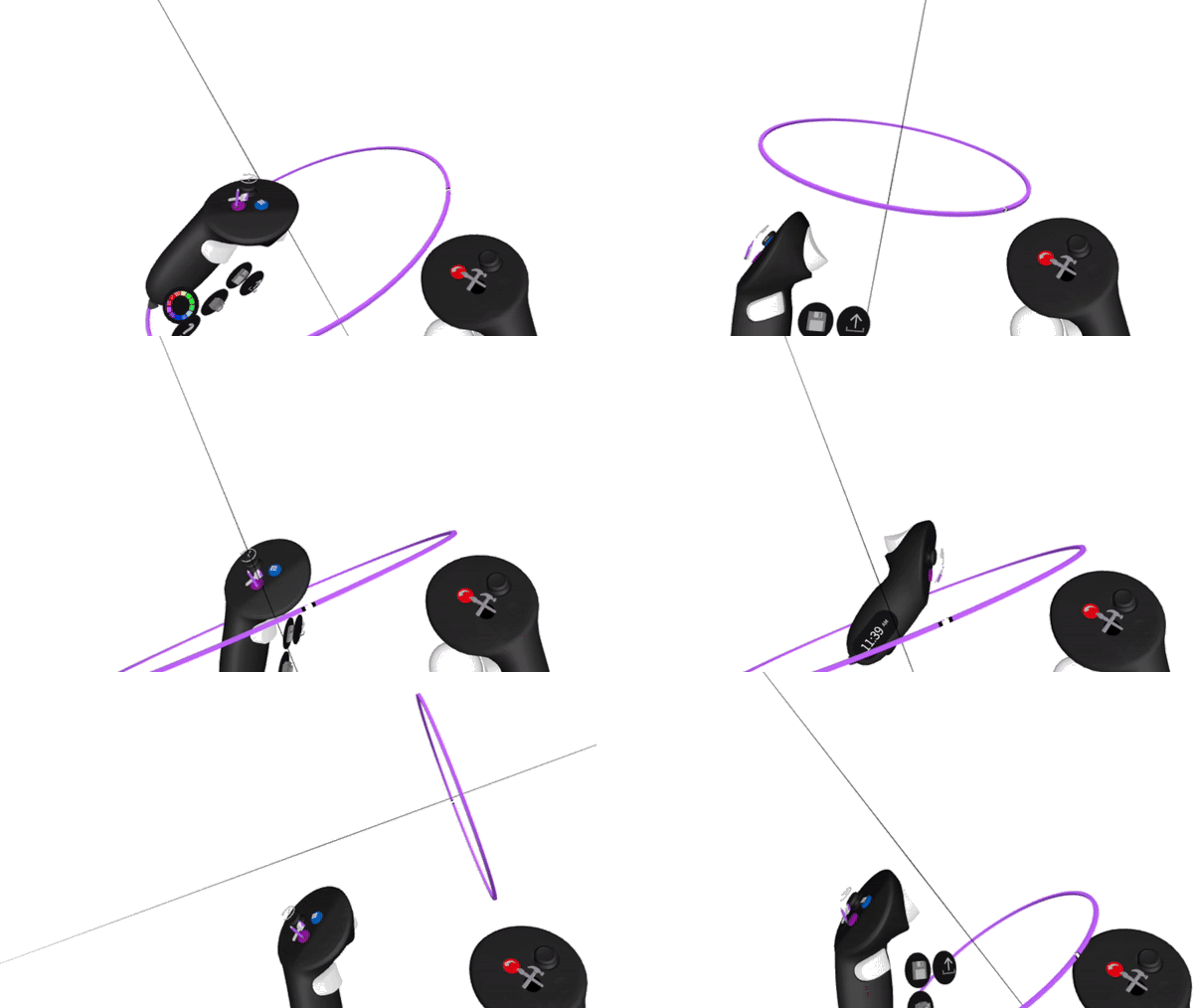
You can set the axis with your non-dominant hand controller. You'll notice a line going through your controller. Simply press the front trigger and move your controller to position the axis. Release the trigger to release the axis.
---
#### **Snap Axis**
While the tool axis is enabled half pull the trigger on the non-dominant hand to :
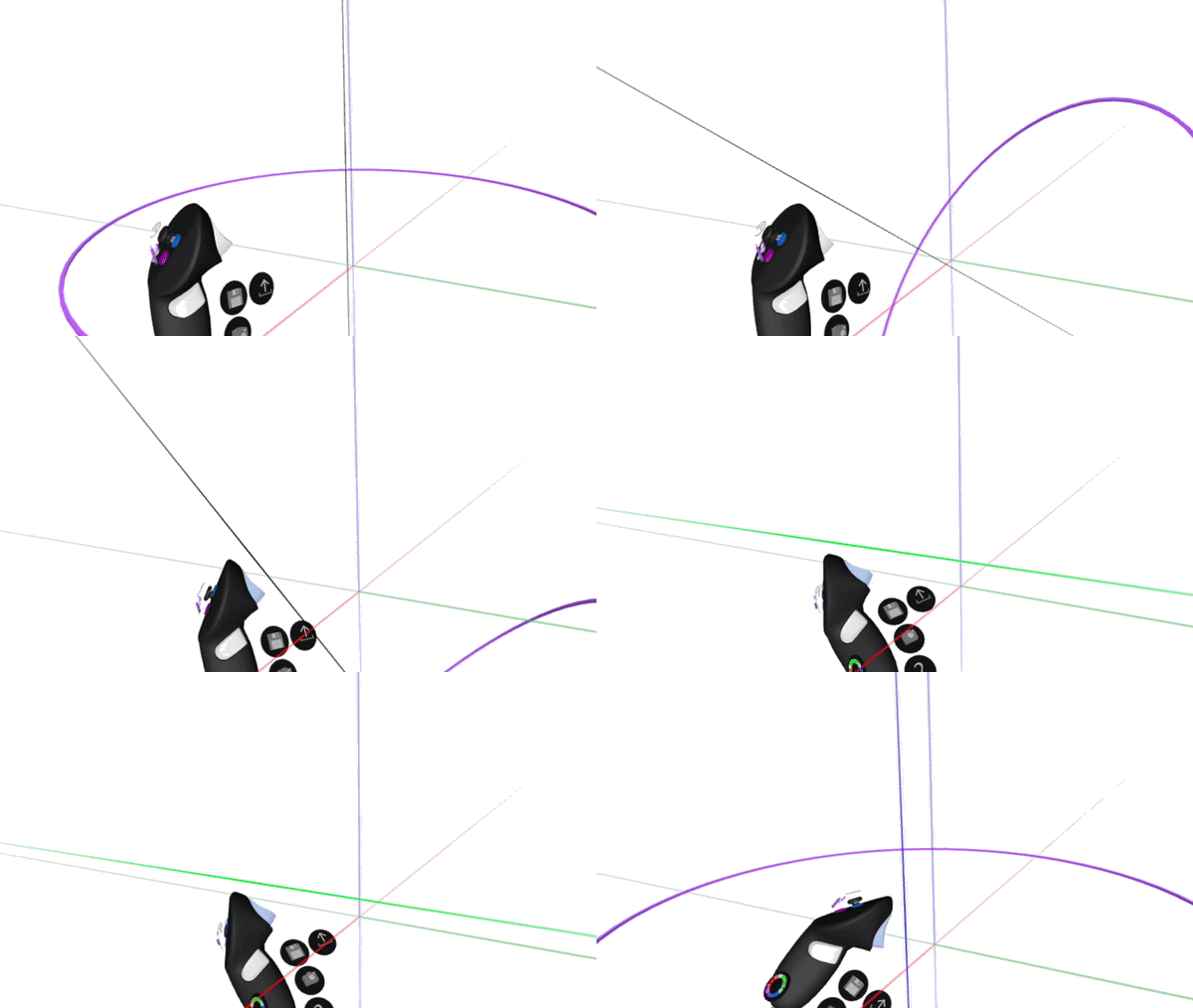
- Snap the axis to 45-degree increments: half pull the index trigger on the non-dominant hand and move in any direction to snap by 45-degree increments.
- Snap to the World axes: half pull the index trigger on the non-dominant hand and move it close to any world axis to snap.
---
#### Snap the axis/plane onto a reference image
You can snap the axis/plane of Revolve, Volume (Planar), or Planar Ink/Stroke onto any reference image that is NOT anchored to the world.
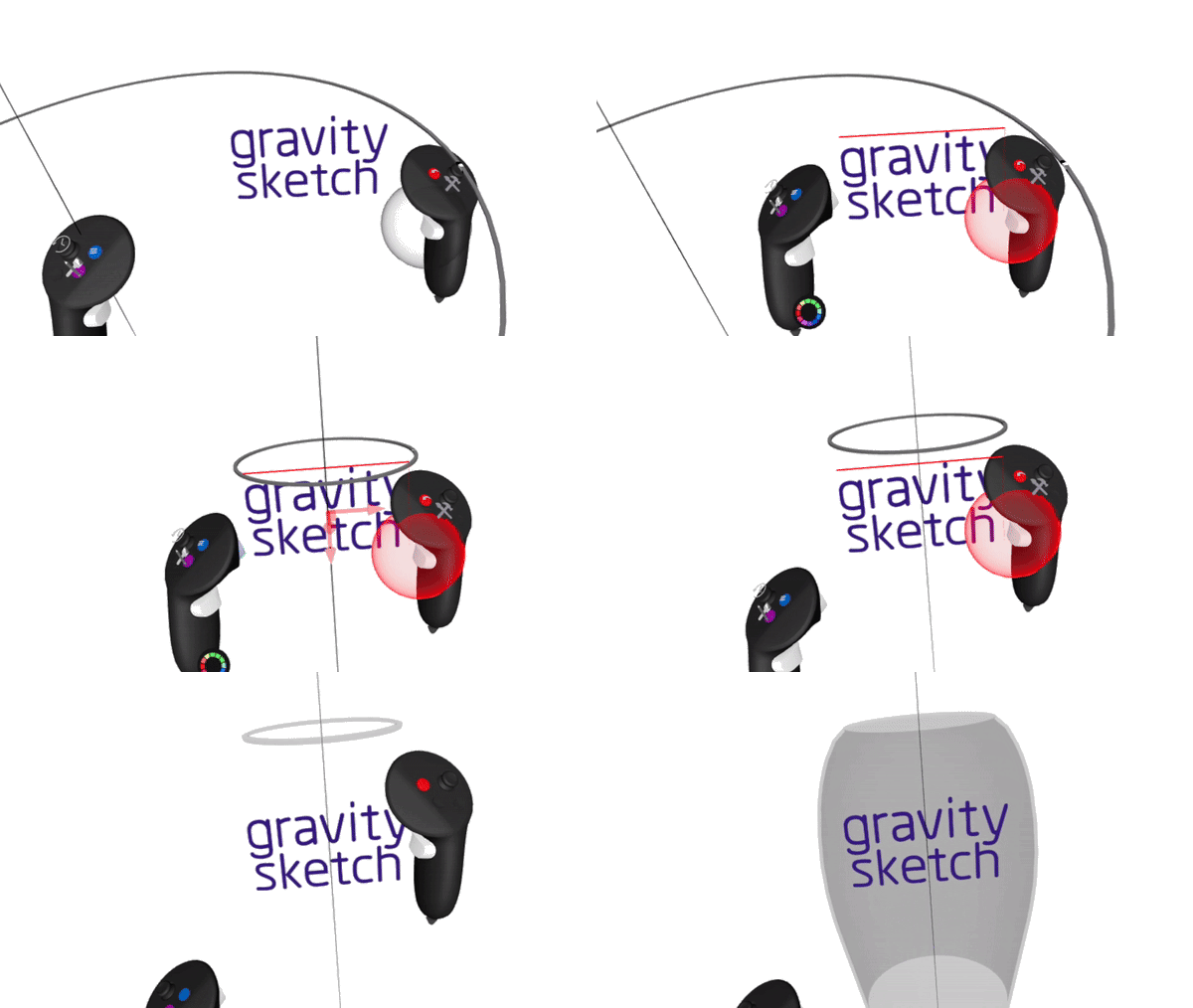
1. Unanchor the reference image that you want to snap the Axis plane onto.
2. Intersect the image you want to place the Axis plane on with the **[Grab Sphere](https://help.gravitysketch.com/hc/en-us/articles/5912669405213-Grab#:~:text=Cancel%20Grab-,Grab%20Sphere,-Grab%20Sphere%20is)**.
3. Half-pull the non-dominant hand trigger to enter the axis snapping mode. You should see a red axis in the centre of the image.
4. Move your non-dominant hand to this location. The Axis plane will snap to the reference image.
---
#### **Recover Axis**
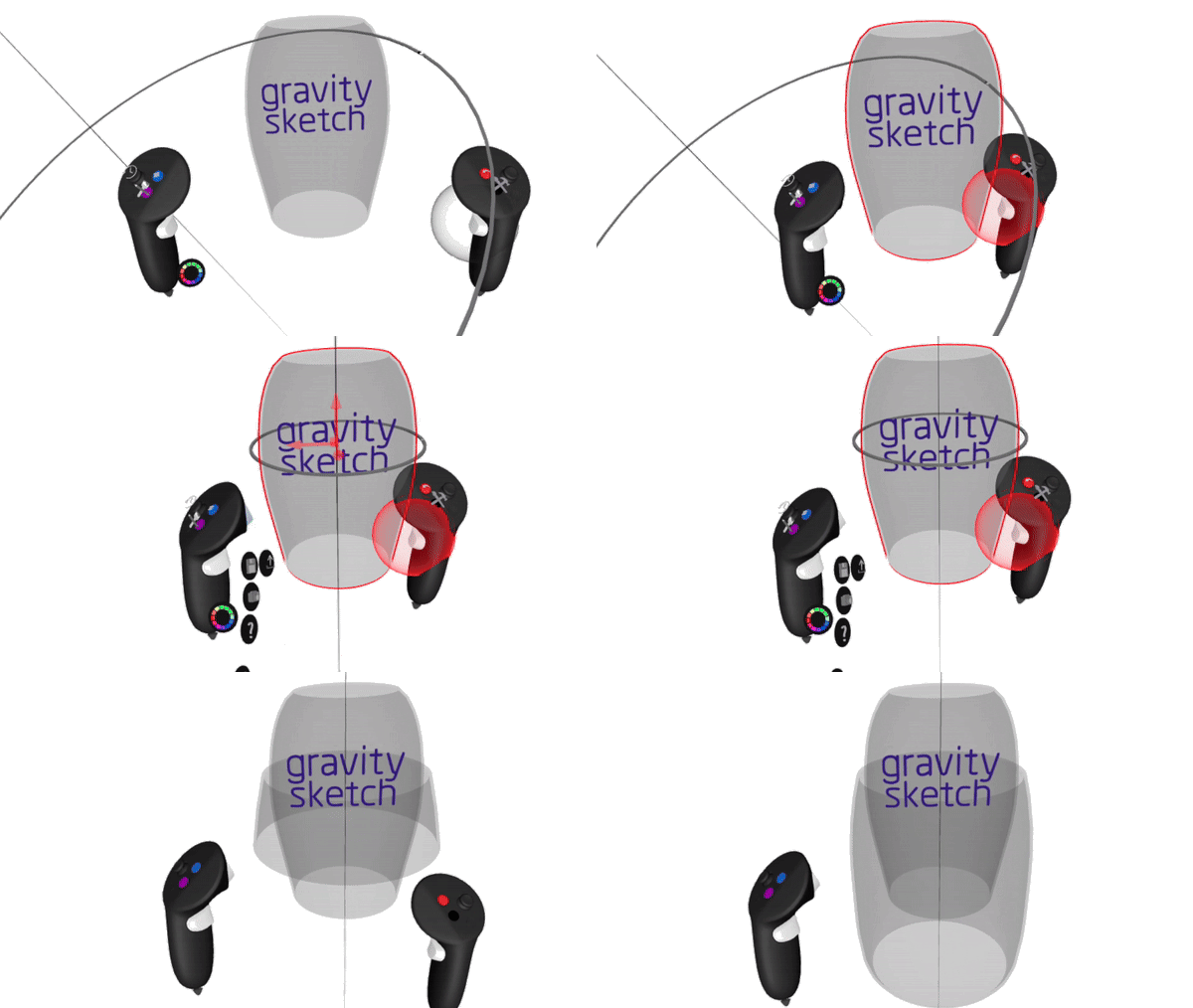
1. Highlight the object that you want to recover the axis by intersecting it with the **[Grab Sphere](https://help.gravitysketch.com/hc/en-us/articles/5912669405213-Grab#:~:text=Cancel%20Grab-,Grab%20Sphere,-Grab%20Sphere%20is)**
2. Half-pull the non-dominant hand trigger to enter axis snapping mode. You should see the “axis” appear inside the original object
3. Move your non-dominant hand towards the middle of the object. Axis will snap to the recovered axis
Check [**the tutorial video.**](https://youtu.be/JO6ELrIRzag)
- [Getting started](https://help.gravitysketch.com/getting-started?hsLang=en#main-content)
- [Basic VR Controls](https://help.gravitysketch.com/getting-started?hsLang=en#basic-vr-controls)
- [Starter Resources](https://help.gravitysketch.com/getting-started?hsLang=en#starter-resources)
- [VR Guide](https://help.gravitysketch.com/getting-started?hsLang=en#vr-guide)
- [PC & VR Setup](https://help.gravitysketch.com/getting-started?hsLang=en#pc-vr-setup)
- [Troubleshooting](https://help.gravitysketch.com/troubleshooting?hsLang=en#main-content)
- [Troubleshooting](https://help.gravitysketch.com/troubleshooting?hsLang=en#troubleshooting)
- [FAQs](https://help.gravitysketch.com/troubleshooting?hsLang=en#faqs)
- [What's new?](https://help.gravitysketch.com/whats-new?hsLang=en#main-content)
- [Release Notes](https://help.gravitysketch.com/whats-new?hsLang=en#release-notes)
- [Product Updates & Releases](https://help.gravitysketch.com/whats-new?hsLang=en#product-updates-releases)
- [Creation tools](https://help.gravitysketch.com/creation-tools?hsLang=en#main-content)
- [Explore Workspace](https://help.gravitysketch.com/creation-tools?hsLang=en#explore-workspace)
- [Interact with Objects](https://help.gravitysketch.com/creation-tools?hsLang=en#interact-with-objects)
- [Sketching and Basic Editing](https://help.gravitysketch.com/creation-tools?hsLang=en#sketching-and-basic-editing)
- [Advanced Control](https://help.gravitysketch.com/creation-tools?hsLang=en#advanced-control)
- [SubD Editing](https://help.gravitysketch.com/creation-tools?hsLang=en#subd-editing)
- [File Management](https://help.gravitysketch.com/creation-tools?hsLang=en#file-management)
- [Beta Menu](https://help.gravitysketch.com/creation-tools?hsLang=en#beta-menu)
- [Quick Tips](https://help.gravitysketch.com/creation-tools?hsLang=en#quick-tips)
- [Import & export](https://help.gravitysketch.com/import-export?hsLang=en)
- [Collaboration](https://help.gravitysketch.com/collaboration?hsLang=en#main-content)
- [Collaboration in AR/VR](https://help.gravitysketch.com/collaboration?hsLang=en#collaboration-in-ar-vr)
- [Collaboration on Desktop](https://help.gravitysketch.com/collaboration?hsLang=en#collaboration-on-desktop)
- [Presentation](https://help.gravitysketch.com/collaboration?hsLang=en#presentation)
- [Data & security](https://help.gravitysketch.com/data-security?hsLang=en)
- [Gravity Sketch for businesses](https://help.gravitysketch.com/gravity-sketch-for-businesses?hsLang=en#main-content)
- [Organizations in Gravity Sketch](https://help.gravitysketch.com/gravity-sketch-for-businesses?hsLang=en#organizations-in-gravity-sketch)
- [Enterprise Features](https://help.gravitysketch.com/gravity-sketch-for-businesses?hsLang=en#enterprise-features)
- [Learn Gravity Sketch](https://help.gravitysketch.com/learn-gravity-sketch?hsLang=en#main-content)
- [Certification](https://help.gravitysketch.com/learn-gravity-sketch?hsLang=en#certification)
- [Community](https://help.gravitysketch.com/learn-gravity-sketch?hsLang=en#community)
- [Education](https://help.gravitysketch.com/learn-gravity-sketch?hsLang=en#education)
- [Labs](https://help.gravitysketch.com/labs?hsLang=en#main-content)
- [About Labs](https://help.gravitysketch.com/labs?hsLang=en#about-labs)
[](http://gravitysketch.com)
Copyright © 2026, Gravity Sketch