---
title: Smart Move
description: Learn how to use Smart Move in Gravity Sketch to move, duplicate, and rotate objects along axes with precision and contextual measurements.
---
[Skip to content](https://help.gravitysketch.com/hc/en-us/articles/5902584110109-smart-move#main-content)

Open main navigation
Close main navigation
How can we help you?
- There are no suggestions because the search field is empty.
1. [Gravity Sketch](https://help.gravitysketch.com/?hsLang=en)
2. [Creation tools](https://help.gravitysketch.com/creation-tools?hsLang=en)
3. [Advanced Control](https://help.gravitysketch.com/creation-tools?hsLang=en#advanced-control)
# Smart Move
#### Introduction
Smart Move allows linear or rotational motion and copy, constrained to the axis between lined-up controllers.
---
#### Smart Move Activation
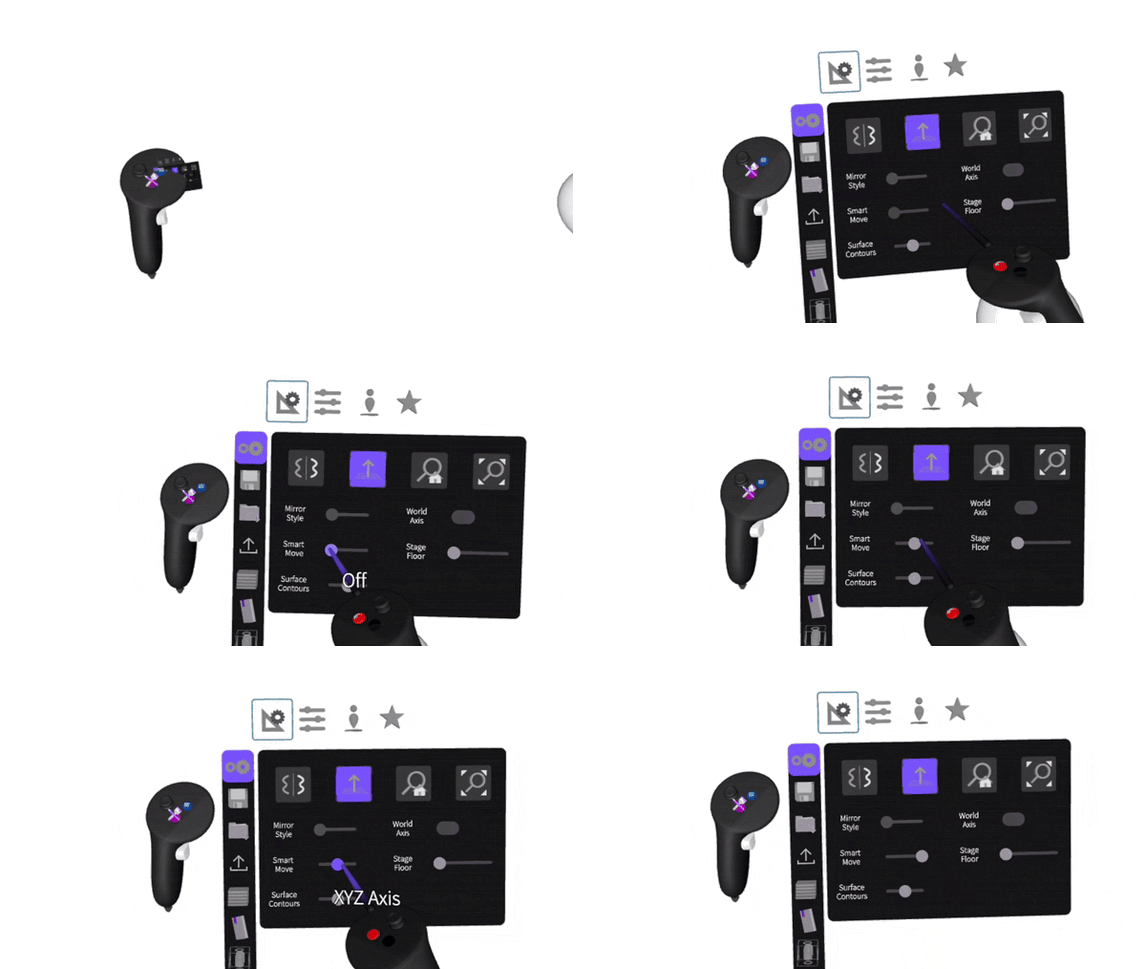
Before using Smart Move make sure it is activated in the settings.
1. Press the General Menu (Blue button)
2. Go to Settings
3. Select Sketching Aid
4. Switch the toggle to the right
---
#### Contextual Measurements (Beta feature)
To move things more precisely you can use Contextual Measurements which you can enable in Beta menu.
1. Press the General Menu (Blue button)
2. Go to Settings
3. Select Beta Menu (star icon)
4. Move the Contextual Measurements button to the right to enable the feature
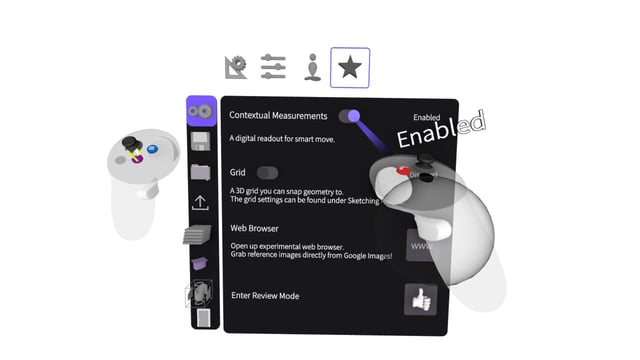
Once enabled measurements will appear on the dominant hand controller when using Smart Move.
-1.png?width=523&height=335&name=mceclip0%20(3)-1.png)
---
#### Smart Move Options
You can select one of the 2 available options:
1. **XYZ Axis** to move the object along the X, Y or Z Axis. The direction lines will be colored according to the color of each axis (red, green, blue)
2. **All Directions** to move the object in any direction (including XYZ Axis). The direction lines will be in gray color
---
#### Moving along axes
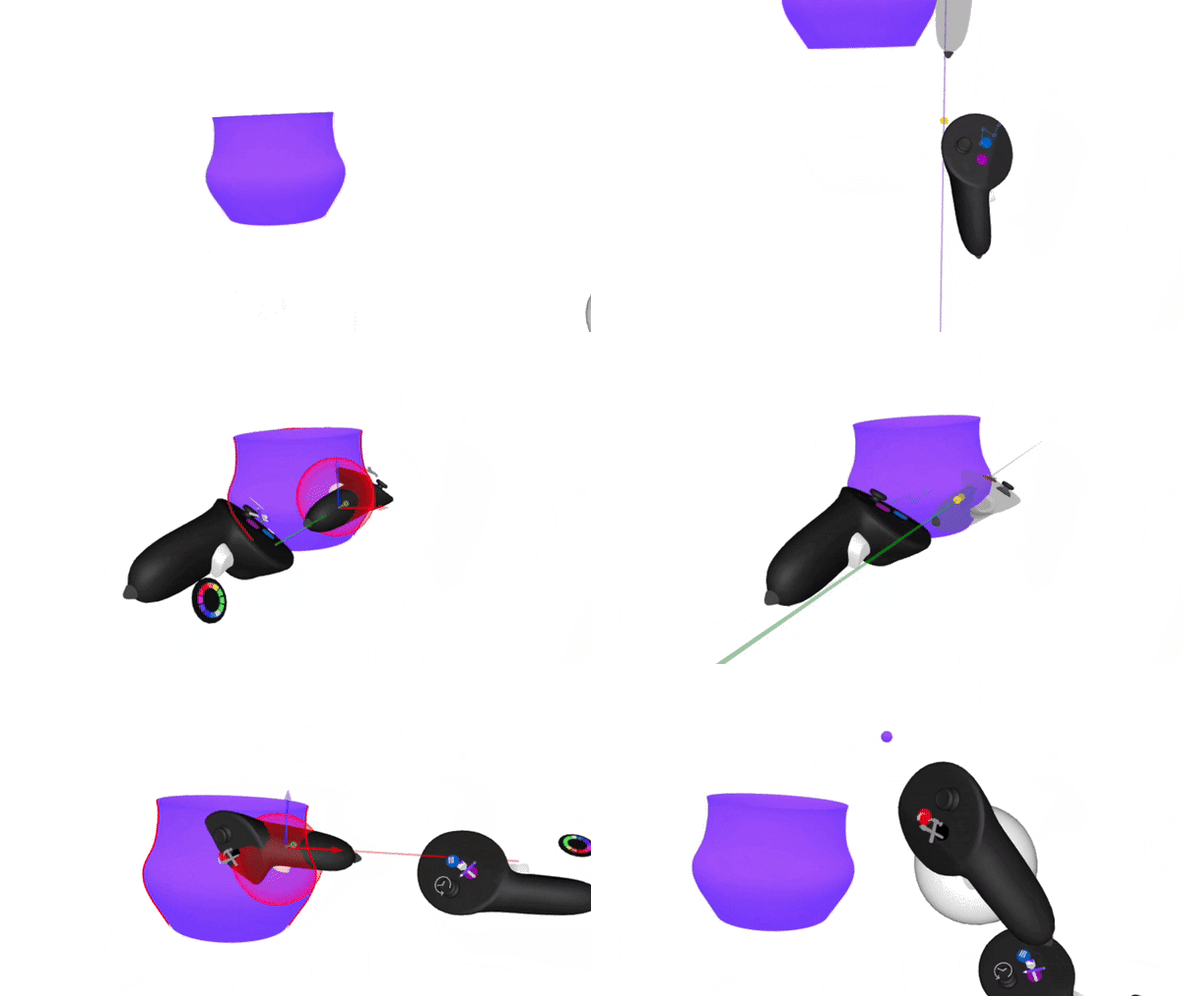
1. Intersect the Grab Sphere on your dominant hand with the object/objects you would like to move
2. Align your non-dominant hand behind or in front of your dominant hand in the direction of any of the axis
3. You may need to tilt your controllers so that they are both in the orientation of the desired axis you would like to move along. Think about holding onto a rope
4. When you align both controllers, the preview axis will appear. Any grab interaction performed when the axis is visible, will be constrained by the axis
1. Red line for X axis
Green line for Y axis
Blue line for Z axis
5. Once the line is visible, squeeze the grab the trigger on your dominant hand while ensuring the Grab Sphere is still intersecting/ selecting desired objects
6. Move the controllers in the direction of the desired axis
---
#### Duplicate objects with Smart Move
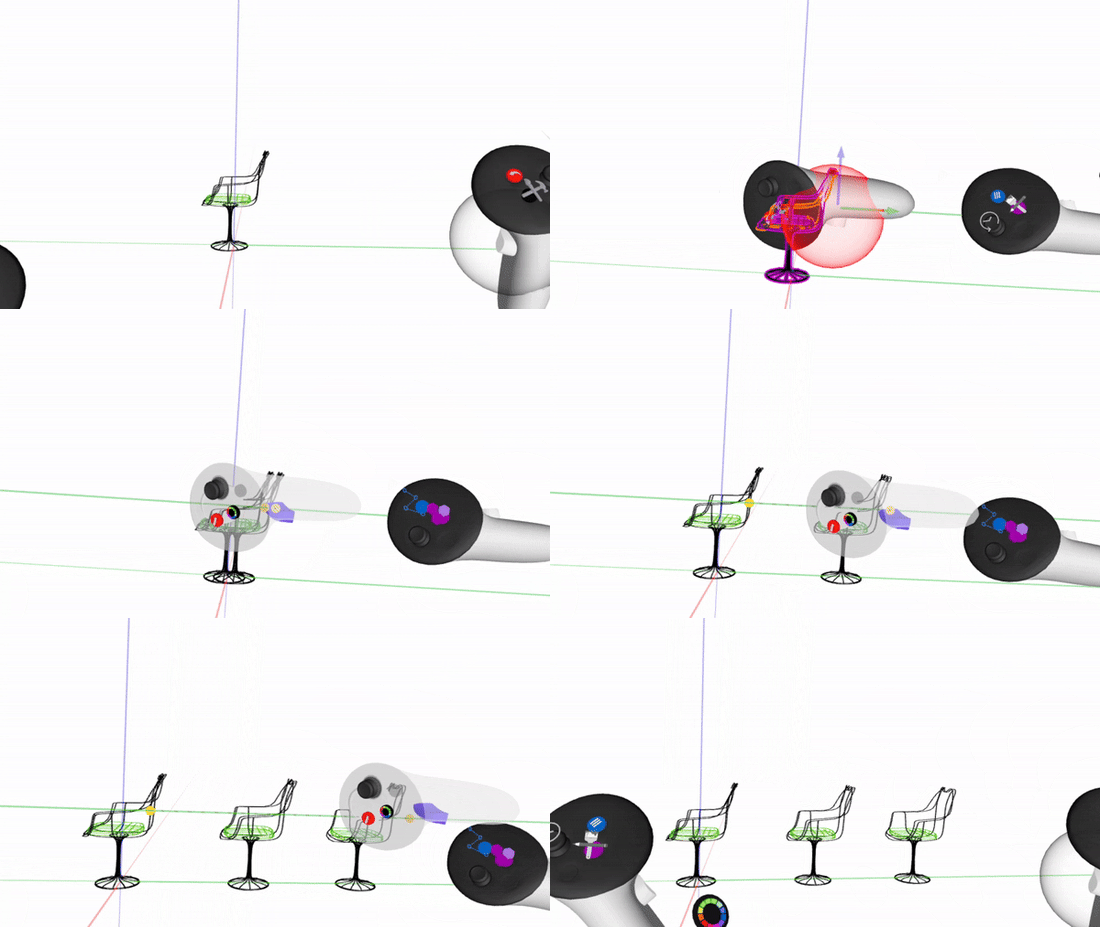
1. Align the controllers and intersect the grab sphere with the object you would like to duplicate
2. Grab the object with the grab trigger on your dominant hand controller and press the dominant index trigger to duplicate
3. Move the controllers along the axis and squeeze the dominant index trigger to duplicate
When you align both controllers and copy the object, the preview axis will appear with equally distanced snapping points.
---
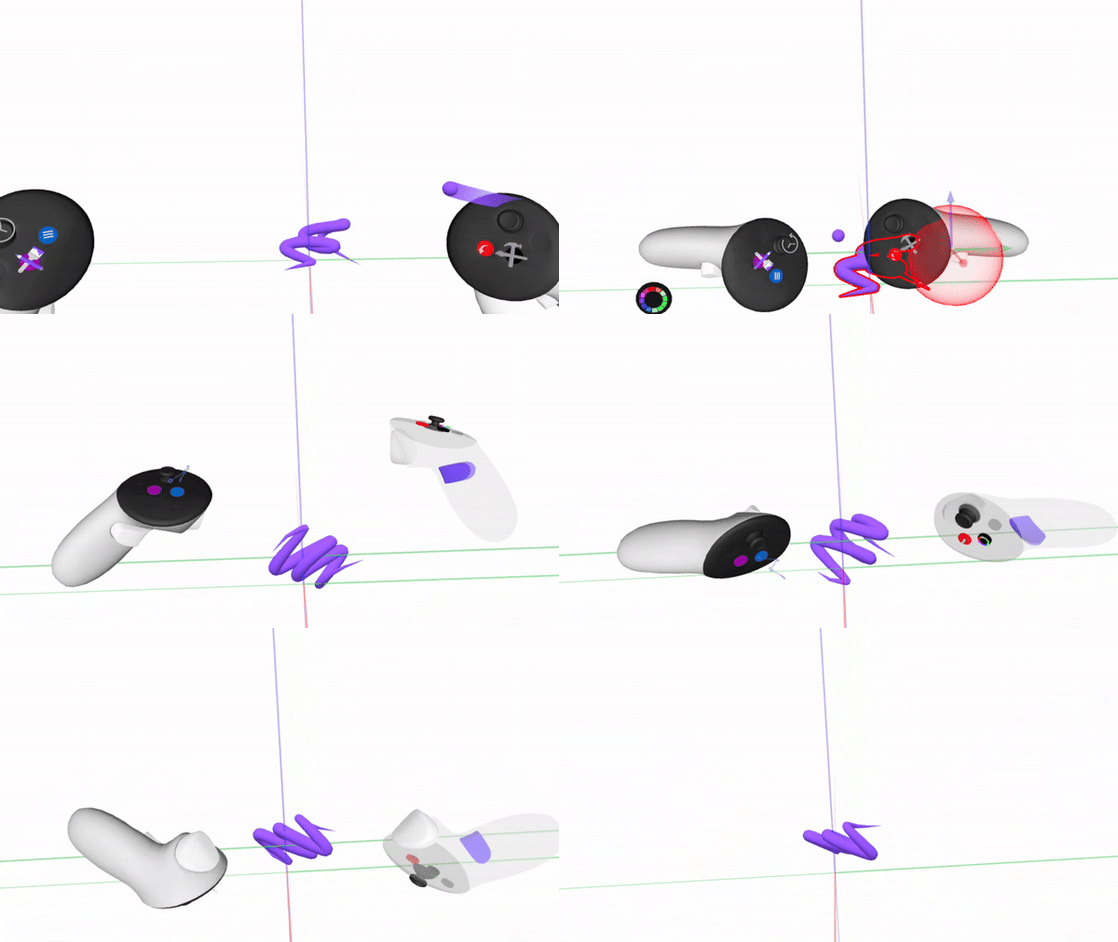
#### Rotate objects with Smart Move
To rotate an object around the axis:
1. Put the controllers in a position so they face in front of each controller
2. Once the axis appears, twist the controllers inward or outward
3. To end the rotation release the grab trigger button
- [Getting started](https://help.gravitysketch.com/getting-started?hsLang=en#main-content)
- [Basic VR Controls](https://help.gravitysketch.com/getting-started?hsLang=en#basic-vr-controls)
- [Starter Resources](https://help.gravitysketch.com/getting-started?hsLang=en#starter-resources)
- [VR Guide](https://help.gravitysketch.com/getting-started?hsLang=en#vr-guide)
- [PC & VR Setup](https://help.gravitysketch.com/getting-started?hsLang=en#pc-vr-setup)
- [Troubleshooting](https://help.gravitysketch.com/troubleshooting?hsLang=en#main-content)
- [Troubleshooting](https://help.gravitysketch.com/troubleshooting?hsLang=en#troubleshooting)
- [FAQs](https://help.gravitysketch.com/troubleshooting?hsLang=en#faqs)
- [What's new?](https://help.gravitysketch.com/whats-new?hsLang=en#main-content)
- [Release Notes](https://help.gravitysketch.com/whats-new?hsLang=en#release-notes)
- [Product Updates & Releases](https://help.gravitysketch.com/whats-new?hsLang=en#product-updates-releases)
- [Creation tools](https://help.gravitysketch.com/creation-tools?hsLang=en#main-content)
- [Explore Workspace](https://help.gravitysketch.com/creation-tools?hsLang=en#explore-workspace)
- [Interact with Objects](https://help.gravitysketch.com/creation-tools?hsLang=en#interact-with-objects)
- [Sketching and Basic Editing](https://help.gravitysketch.com/creation-tools?hsLang=en#sketching-and-basic-editing)
- [Advanced Control](https://help.gravitysketch.com/creation-tools?hsLang=en#advanced-control)
- [SubD Editing](https://help.gravitysketch.com/creation-tools?hsLang=en#subd-editing)
- [File Management](https://help.gravitysketch.com/creation-tools?hsLang=en#file-management)
- [Beta Menu](https://help.gravitysketch.com/creation-tools?hsLang=en#beta-menu)
- [Quick Tips](https://help.gravitysketch.com/creation-tools?hsLang=en#quick-tips)
- [Import & export](https://help.gravitysketch.com/import-export?hsLang=en)
- [Collaboration](https://help.gravitysketch.com/collaboration?hsLang=en#main-content)
- [Collaboration in AR/VR](https://help.gravitysketch.com/collaboration?hsLang=en#collaboration-in-ar-vr)
- [Collaboration on Desktop](https://help.gravitysketch.com/collaboration?hsLang=en#collaboration-on-desktop)
- [Presentation](https://help.gravitysketch.com/collaboration?hsLang=en#presentation)
- [Data & security](https://help.gravitysketch.com/data-security?hsLang=en)
- [Gravity Sketch for businesses](https://help.gravitysketch.com/gravity-sketch-for-businesses?hsLang=en#main-content)
- [Organizations in Gravity Sketch](https://help.gravitysketch.com/gravity-sketch-for-businesses?hsLang=en#organizations-in-gravity-sketch)
- [Enterprise Features](https://help.gravitysketch.com/gravity-sketch-for-businesses?hsLang=en#enterprise-features)
- [Learn Gravity Sketch](https://help.gravitysketch.com/learn-gravity-sketch?hsLang=en#main-content)
- [Certification](https://help.gravitysketch.com/learn-gravity-sketch?hsLang=en#certification)
- [Community](https://help.gravitysketch.com/learn-gravity-sketch?hsLang=en#community)
- [Education](https://help.gravitysketch.com/learn-gravity-sketch?hsLang=en#education)
- [Labs](https://help.gravitysketch.com/labs?hsLang=en#main-content)
- [About Labs](https://help.gravitysketch.com/labs?hsLang=en#about-labs)
[](http://gravitysketch.com)
Copyright © 2026, Gravity Sketch