---
title: Reference Images
description: Learn how to import, manage, and use reference images in Gravity Sketch via PC, LandingPad, or Web Browser to enhance your 3D sketches.
---
[Skip to content](https://help.gravitysketch.com/hc/en-us/articles/5912557661981-reference-images#main-content)

Open main navigation
Close main navigation
How can we help you?
- There are no suggestions because the search field is empty.
1. [Gravity Sketch](https://help.gravitysketch.com/?hsLang=en)
2. [Creation tools](https://help.gravitysketch.com/creation-tools?hsLang=en)
3. [Sketching and Basic Editing](https://help.gravitysketch.com/creation-tools?hsLang=en#sketching-and-basic-editing)
# Reference Images
## Uploading Reference Image
#### Introduction
You might want to bring some images as references or inspiration to your space when creating. You can do this by uploading them to your headset/Gravity Sketch Web account or directly from the web with the **[Web Browser](https://help.gravitysketch.com/hc/en-us/articles/9964913793053?hsLang=en)** feature. You can also import reference images locally through your PC or via Gravity Sketch Web.
---
### Import Images using PC
Connect your VR headset to your PC and drop **JPG/PNG image files** into the following directory:
```
This PC\MTP USB Device\Internal shared storage\Gravity Sketch\Reference Images
```
### Import Images using Gravity Sketch Web
1. Go to [app.gravitysketch.com](http://landingpad.me/) and login into your account
2. Place JPG/PNG files into My Files by dragging/dropping (you can also simply copy the image from the original source and paste it anywhere in My Files) or selecting the + icon in the top right corner and selecting Upload. Please make sure you remove all special characters from the name of the image.
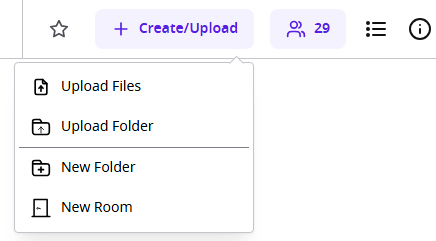
\*If you cannot find your files after importing them, press the Refresh button (C) to reload.
---
### Import Images using Web Browser
To import images from the Web Browser please check the instructions [here](https://help.gravitysketch.com/hc/en-us/articles/9964913793053-Web-Browser-in-VR#:~:text=to%20resize%20it.-,Reference%20Images,-You%20can%20pull).
#### Reference Images Panel
#### 
#### You can scroll through images easily by moving the joystick on the non-drawing hand controller left or right.

**A. Refresh**: Press to load newly added images
**B. Hide**: Toggle to hide all images from your scene
**C. Add Folder**: Add a new folder to the current
---
#### Bring Reference Images into your sketch
To bring images to your sketch:
1. While in a sketch, press the (blue) General Menu button and go to Reference Images
2. Locate your reference images
3. Grab and drop the images into your scene
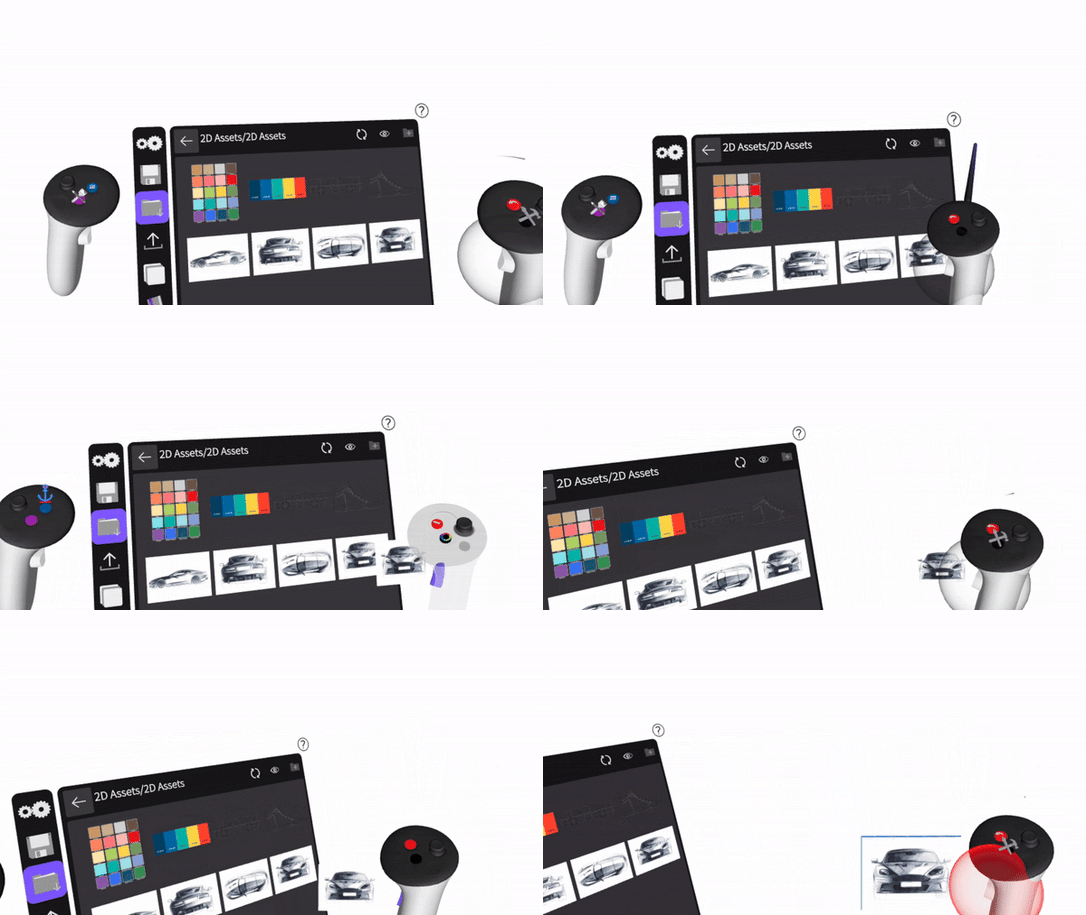
You can bring the reference images directly from the web with the Web Browser feature. Check for more information **[here](https://help.gravitysketch.com/hc/en-us/articles/9964913793053-Web-Browser-in-VR#:~:text=to%20resize%20it.-,Reference%20Images,-You%20can%20pull)**.
#### Anchor/Un-Anchor Images
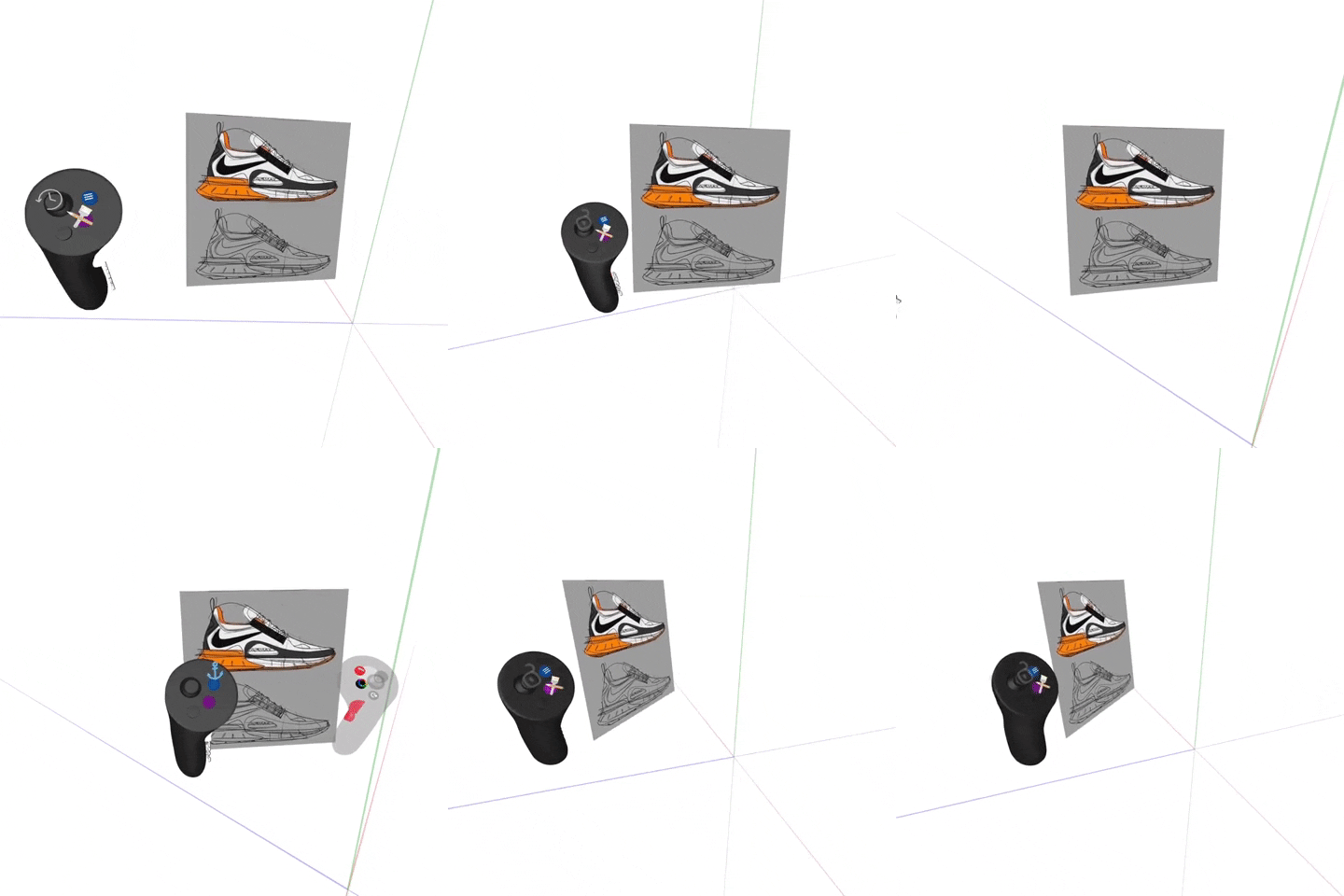
Images are anchored to your perspective by default. Grab the image and press the edit button (Blue) on your non-drawing hand to un-anchor. Press again to anchor back.
#### Snap images to axes
You can snap any unanchored image to the sketch (by 45-degree increments):
1\. Make sure the image you want to snap is unanchored
2\. Grab the image with the drawing hand controller and hold the index finger trigger on the non-drawing hand controller to snap it
#### Add Images to the Reference Images menu
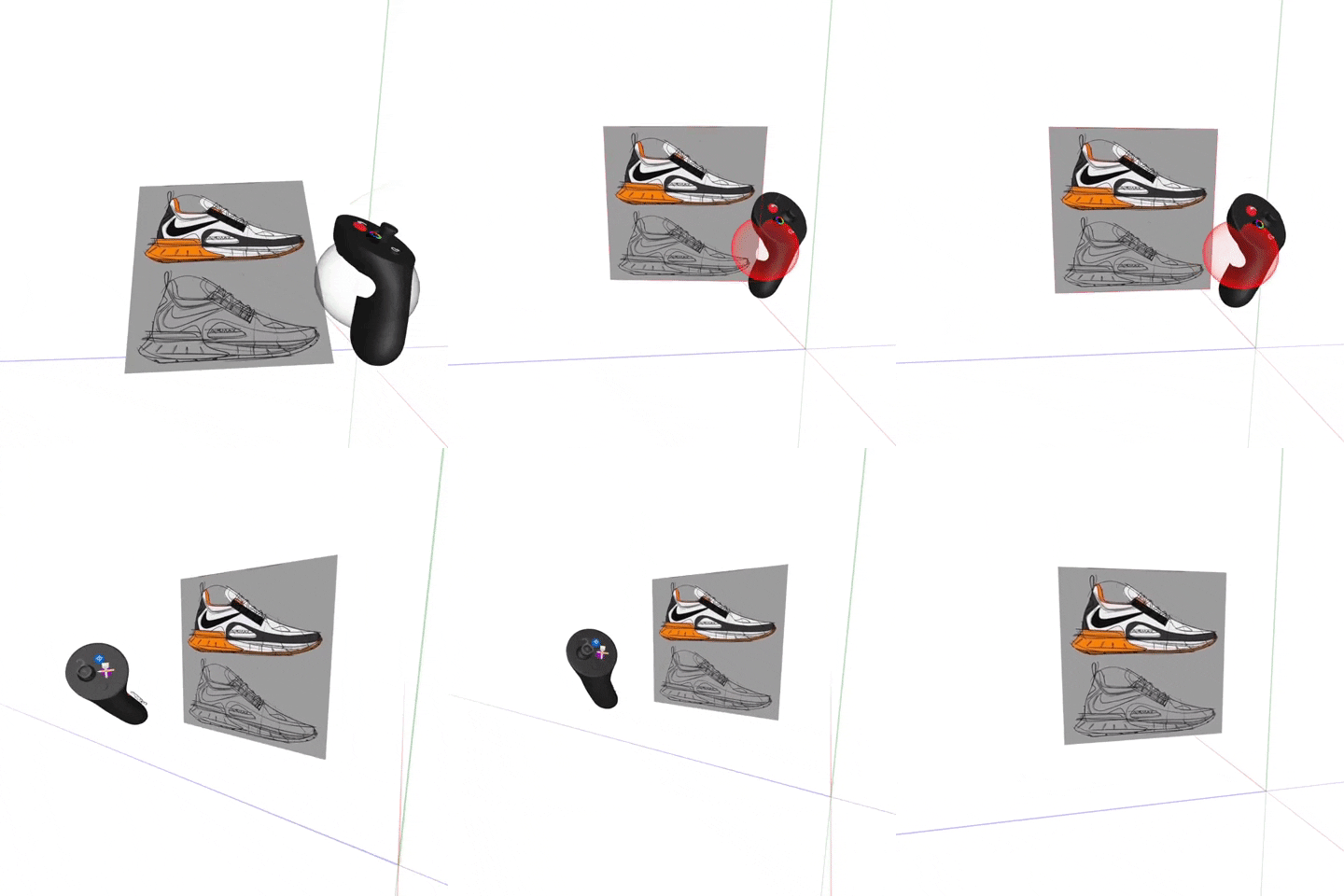
You can add an image to your Reference Images by grabbing it from the sketch and dropping it into the Reference Images menu.
1. Open Reference Images and select a folder you would like to export the image to
2. Intersect the image you would like to export with the grab sphere and press the grab button
3. Once you grab the image drop it into the blue box
4. Name the image and select the blue check mark
5. Access your exported images within Reference Images in VR or on [landingpad.me](http://landingpad.me/)
You can add one image at a time.
- [Getting started](https://help.gravitysketch.com/getting-started?hsLang=en#main-content)
- [Basic VR Controls](https://help.gravitysketch.com/getting-started?hsLang=en#basic-vr-controls)
- [Starter Resources](https://help.gravitysketch.com/getting-started?hsLang=en#starter-resources)
- [VR Guide](https://help.gravitysketch.com/getting-started?hsLang=en#vr-guide)
- [PC & VR Setup](https://help.gravitysketch.com/getting-started?hsLang=en#pc-vr-setup)
- [Troubleshooting](https://help.gravitysketch.com/troubleshooting?hsLang=en#main-content)
- [Troubleshooting](https://help.gravitysketch.com/troubleshooting?hsLang=en#troubleshooting)
- [FAQs](https://help.gravitysketch.com/troubleshooting?hsLang=en#faqs)
- [What's new?](https://help.gravitysketch.com/whats-new?hsLang=en#main-content)
- [Release Notes](https://help.gravitysketch.com/whats-new?hsLang=en#release-notes)
- [Product Updates & Releases](https://help.gravitysketch.com/whats-new?hsLang=en#product-updates-releases)
- [Creation tools](https://help.gravitysketch.com/creation-tools?hsLang=en#main-content)
- [Explore Workspace](https://help.gravitysketch.com/creation-tools?hsLang=en#explore-workspace)
- [Interact with Objects](https://help.gravitysketch.com/creation-tools?hsLang=en#interact-with-objects)
- [Sketching and Basic Editing](https://help.gravitysketch.com/creation-tools?hsLang=en#sketching-and-basic-editing)
- [Advanced Control](https://help.gravitysketch.com/creation-tools?hsLang=en#advanced-control)
- [SubD Editing](https://help.gravitysketch.com/creation-tools?hsLang=en#subd-editing)
- [File Management](https://help.gravitysketch.com/creation-tools?hsLang=en#file-management)
- [Beta Menu](https://help.gravitysketch.com/creation-tools?hsLang=en#beta-menu)
- [Quick Tips](https://help.gravitysketch.com/creation-tools?hsLang=en#quick-tips)
- [Import & export](https://help.gravitysketch.com/import-export?hsLang=en)
- [Collaboration](https://help.gravitysketch.com/collaboration?hsLang=en#main-content)
- [Collaboration in AR/VR](https://help.gravitysketch.com/collaboration?hsLang=en#collaboration-in-ar-vr)
- [Collaboration on Desktop](https://help.gravitysketch.com/collaboration?hsLang=en#collaboration-on-desktop)
- [Presentation](https://help.gravitysketch.com/collaboration?hsLang=en#presentation)
- [Data & security](https://help.gravitysketch.com/data-security?hsLang=en)
- [Gravity Sketch for businesses](https://help.gravitysketch.com/gravity-sketch-for-businesses?hsLang=en#main-content)
- [Organizations in Gravity Sketch](https://help.gravitysketch.com/gravity-sketch-for-businesses?hsLang=en#organizations-in-gravity-sketch)
- [Enterprise Features](https://help.gravitysketch.com/gravity-sketch-for-businesses?hsLang=en#enterprise-features)
- [Learn Gravity Sketch](https://help.gravitysketch.com/learn-gravity-sketch?hsLang=en#main-content)
- [Certification](https://help.gravitysketch.com/learn-gravity-sketch?hsLang=en#certification)
- [Community](https://help.gravitysketch.com/learn-gravity-sketch?hsLang=en#community)
- [Education](https://help.gravitysketch.com/learn-gravity-sketch?hsLang=en#education)
- [Labs](https://help.gravitysketch.com/labs?hsLang=en#main-content)
- [About Labs](https://help.gravitysketch.com/labs?hsLang=en#about-labs)
[](http://gravitysketch.com)
Copyright © 2026, Gravity Sketch