Introduction
When editing curves created with Ink or Stroke tool you can adjust the thickness, smoothness and normals of control points.
Adjust thickness
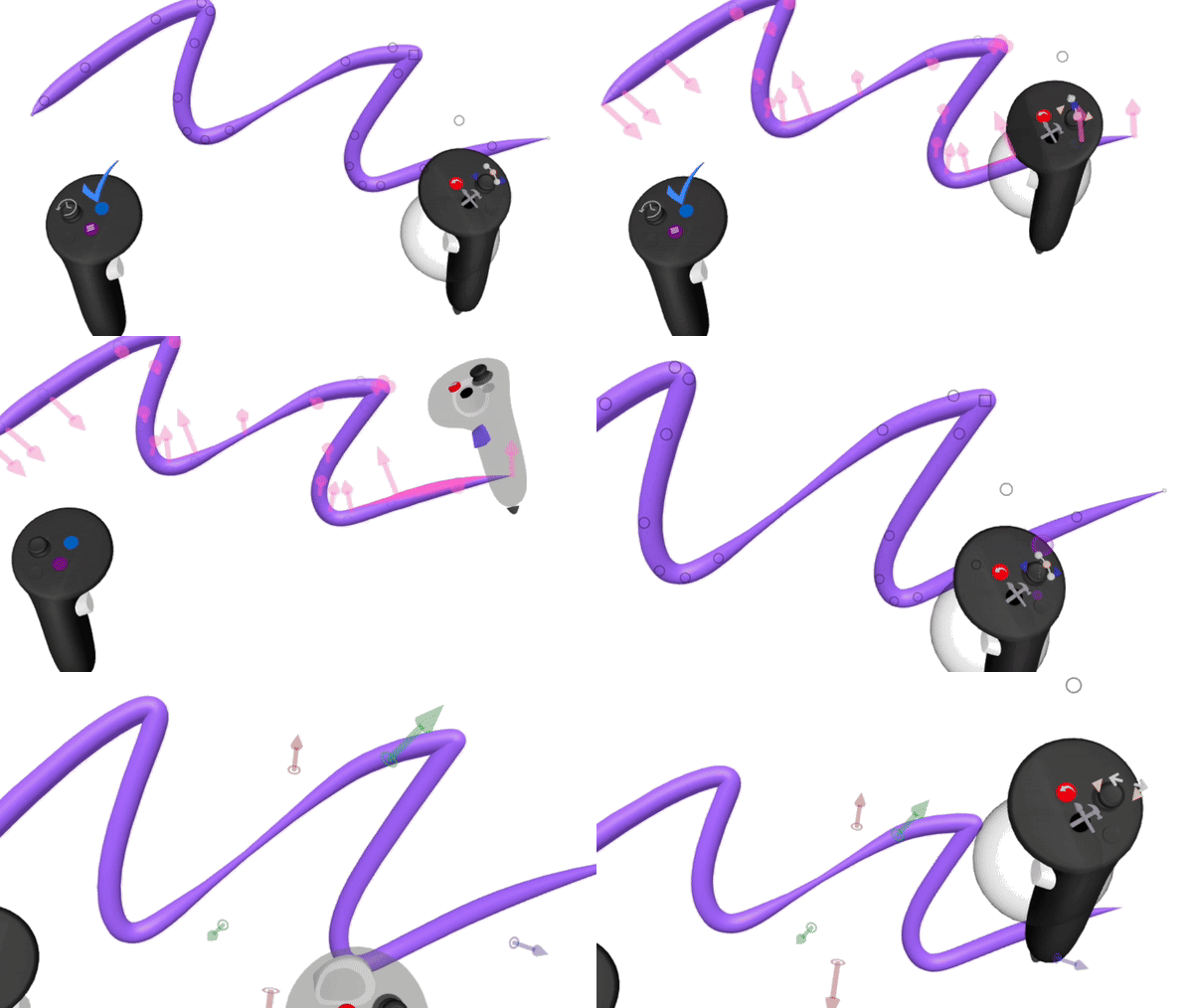
You can adjust the size of a point on a curve. Use this feature to create line sketches of higher quality.
- Enter Edit mode by grabbing the object and pressing the blue button on the non-drawing controller
- Grab a control point or group of control points and move the thumbstick (or swipe touchpad) left or right to adjust the size
Adjust Smoothness
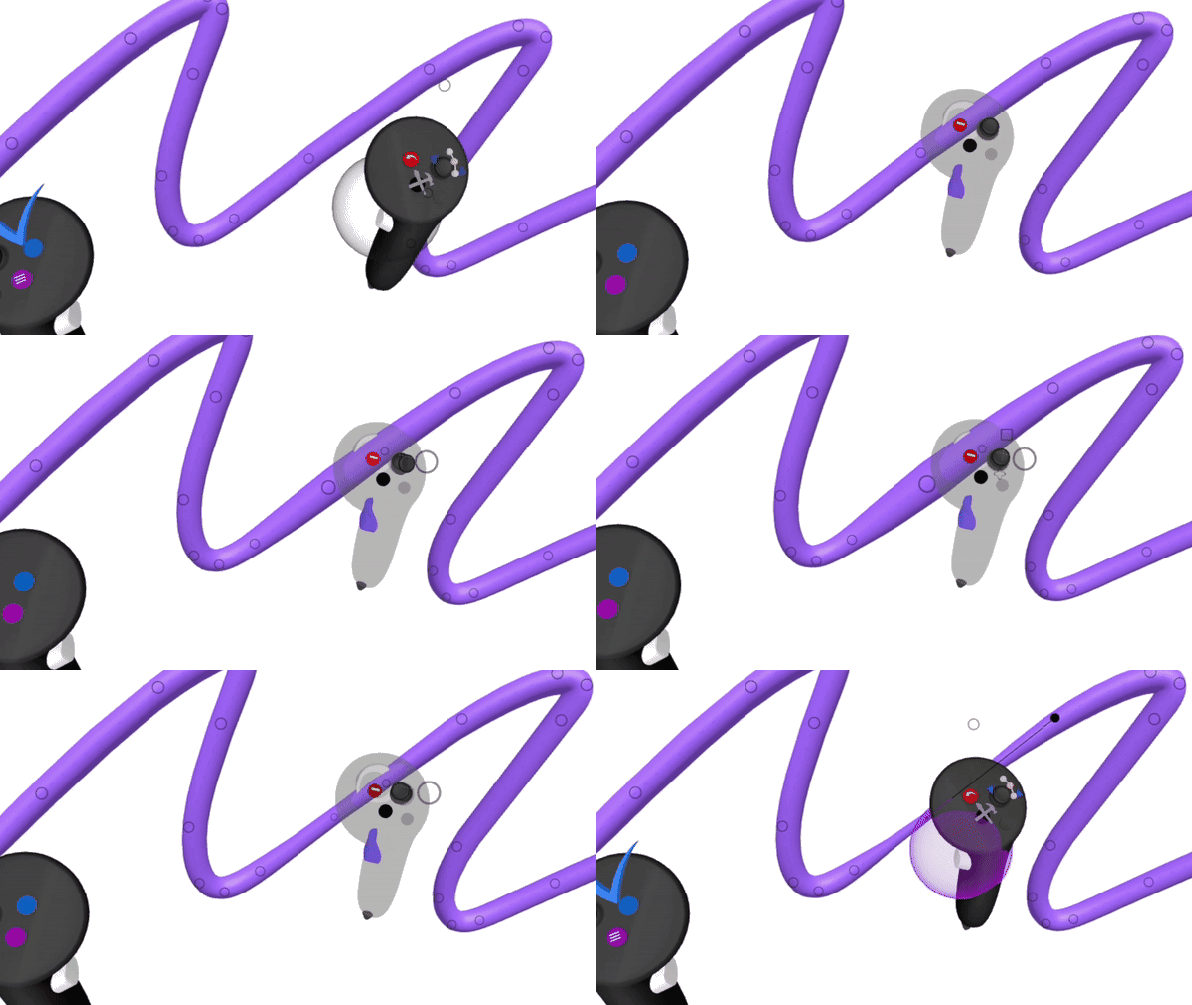
To adjust the smoothness of the control point(s):
1. Enter the edit mode of the stroke
2. Grab a control point or group of control points and move the thumbstick on your drawing hand controller up and down
Adjust normals
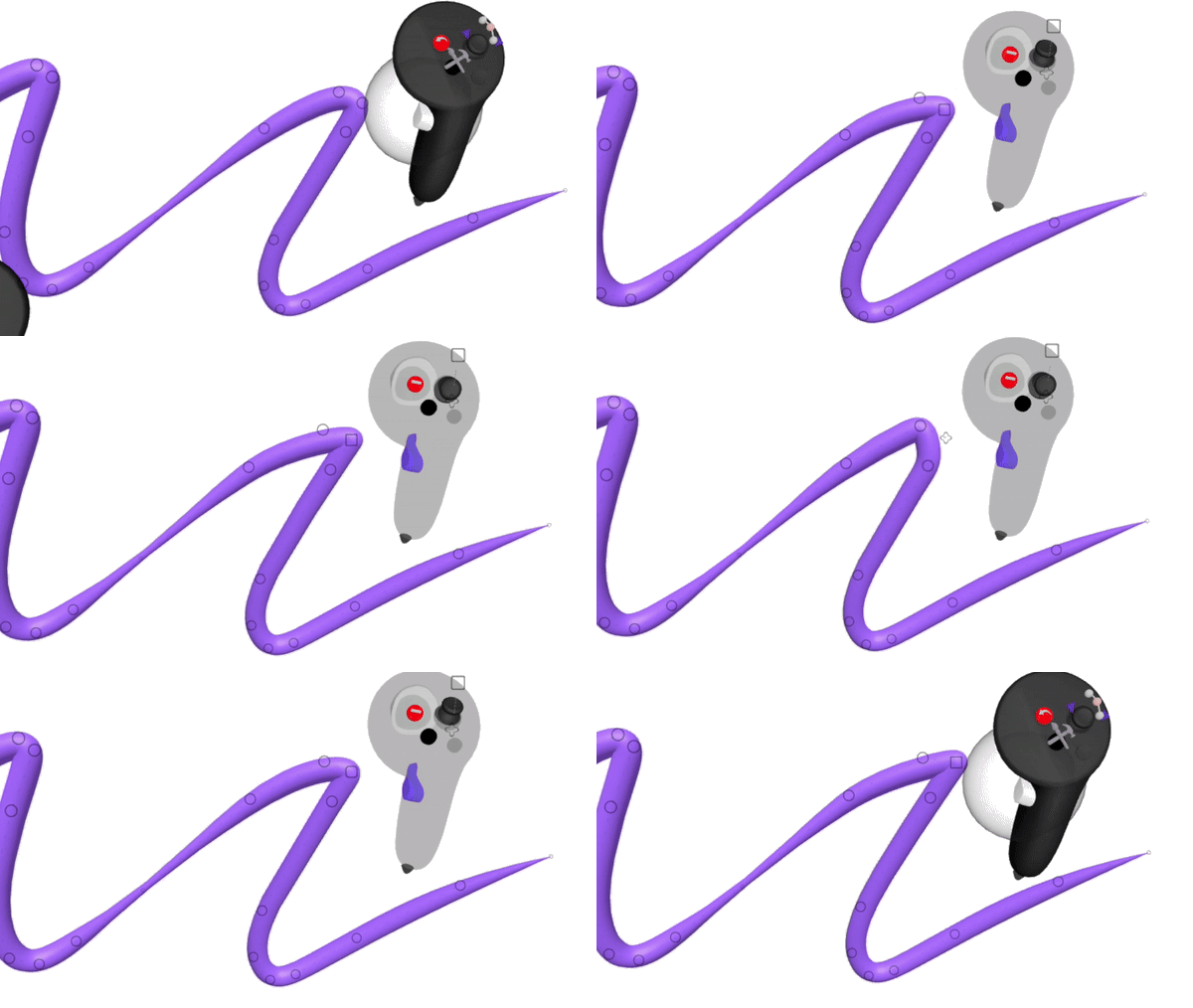
The default mode when editing strokes will be the Point mode. In Gravity Sketch you can also adjust the Normals of a curve to twist it more dynamically.
- When in the Edit mode toggle the selection mode by moving the thumbstick/swipe touchpad on your drawing hand from Point mode to Normals mode
- Grab and drag arrows in wanted directions