
Installing Gravity Sketch on your PC
App.GravitySketch.com
To use Desktop App on your PC or Mac, you’ll need to install the Gravity Sketch application first. This guide will walk you through downloading the app, setting it up with the new MSI installer (recommended), and then joining a room directly from your computer.
Setup instruction
- Go to app.gravitysketch.com and log in with your account.
- Click on your account icon in the top right corner, then select Download Gravity Sketch.
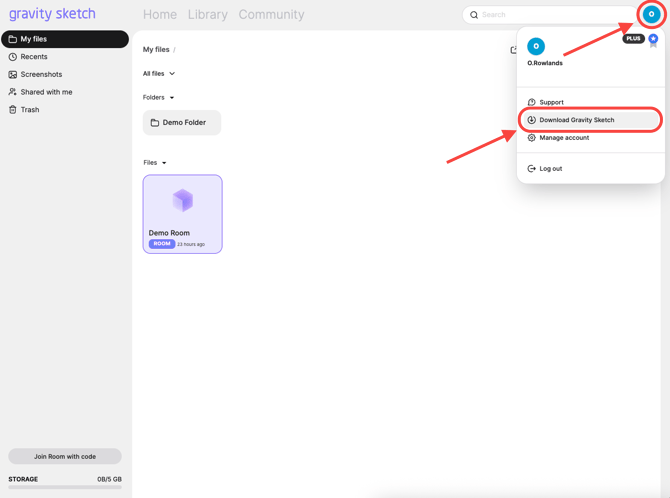
- Choose the installer for your device:
- Windows – Download the MSI installer and run it. The MSI installer will handle updates automatically and keeps your installation up to date.
- Mac – Download the
.dmgfile, open it, and drag the Gravity Sketch app into your Applications folder.
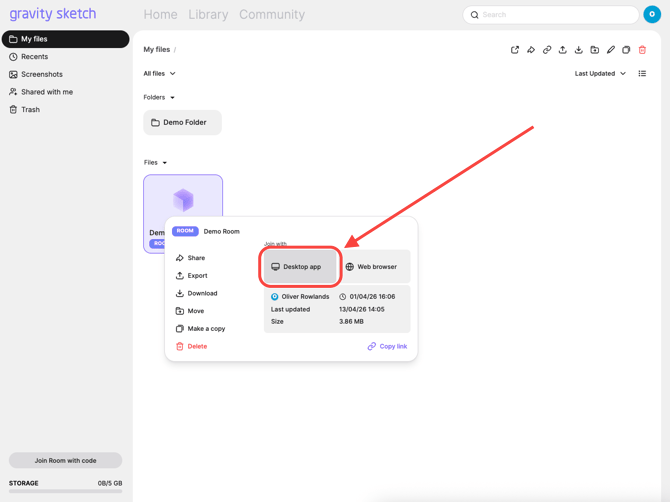
- Return to app.gravitysketch.com and right click the room you want to join. From here select Desktop App.
LandingPad.me
To use Screen Collab on your PC or Mac, you’ll need to install the Gravity Sketch application first. This guide will walk you through downloading the app, setting it up with the new MSI installer (recommended), and then joining a room directly from your computer.
Setup instructions
- Go to LandingPad.me and log in with your account.
- Click on your account icon in the top right corner, then select Download Gravity Sketch.
- Choose the installer for your device:
- Windows – Download the MSI installer and run it. The MSI installer will handle updates automatically and keeps your installation up to date.
- Mac – Download the
.dmgfile, open it, and drag the Gravity Sketch app into your Applications folder.
- Return to LandingPad and select the room you want to join. For more detail, follow the instructions here.