
Enter/Exit a Room
App.GravitySketch.com
Enter Room
With Web Broswer, you can join any room you have access to through the browser.
To join a room follow these steps:
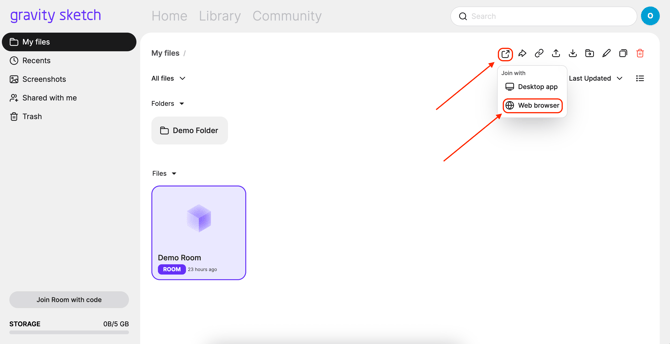
1. Go to app.gravitysketch.com in your browser and log into your account
2. Click on the room you'd like to join
3. Select the Join Room button on the top right side of the screen, select "Join With" then select "Web Browser"
Exit Room
Once you are in the room simply close the tab in your browser and any amendments will be auto saved.
LandingPad.me
Enter Room
With Screen Collab, you can join any room you have access to in your organisation through the browser.
Screen Collab is an app-based feature so make sure you've downloaded the Gravity Sketch app first. Learn how to do this here.
To join a room follow these steps:
1. Go to landingpad.me in your browser and log into your account
2. Click on the room you'd like to join
3. Select the Join Room button on the top right side of the screen
-1.png?width=610&height=120&name=mceclip0%20(5)-1.png)
4. Select 'Open the Screen Collab app'

Select Open GravitySketchLink
-2.png?width=441&height=373&name=mceclip1%20(1)-2.png)
5. The room will be launched in the Gravity Sketch app on your Mac/PC
Exit Room
Once you are in the room simply select the red Leave room button on the bottom right to exit it. You can also simply close the Gravity Sketch window.
-1.png?width=262&height=121&name=mceclip0%20(6)-1.png)