---
title: Communication Tools
description: Learn how to communicate in Screen Collab using the microphone, drawing tools, annotations, eraser, and laser pointer.
---
[Skip to content](https://help.gravitysketch.com/hc/en-us/articles/8949089543837-communication-tools#main-content)

Open main navigation
Close main navigation
How can we help you?
- There are no suggestions because the search field is empty.
1. [Gravity Sketch](https://help.gravitysketch.com/?hsLang=en)
2. [Collaboration](https://help.gravitysketch.com/collaboration?hsLang=en)
3. [Collaboration on Desktop](https://help.gravitysketch.com/collaboration?hsLang=en#collaboration-on-desktop)
# Communication Tools
In Screen Collab, you can communicate in various ways: use a microphone to talk to others, use drawing tools to add marks (and delete them with the eraser), and add notes and point the laser to specific parts of the model. In this article, we will go through all these features so you can learn where to find them and how to use them best.
#### Microphone
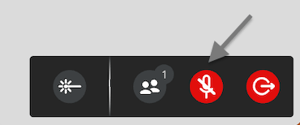
Click the microphone icon on the right bottom side of the screen to turn it on or off.
#### Undo/Redo
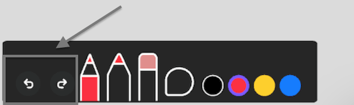
Undo button will undo the last action that was made
The redo button will revamp the last change.
#### Marking tools
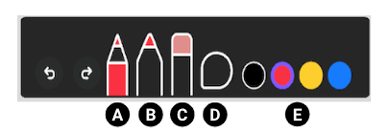
Marking tools are located on the bottom left side of the screen. With these tools, you can mark up the sketch and add the notes for yourself or other users to see.
### A) Pen Tool and B) Marker Tool
Use Pen and Marker tools to draw directly in the room. Everything you draw will be visible to other users (on screen and in VR).
Click on the icon and use your mouse to control it.
### C) Eraser
This tool will erase pen lines and annotations. Select the Eraser, intersect it with the line you'd like to delete and left-click to delete.
You'll need to delete each object individually. You won't be able to delete anything created in VR with this tool, only what has been added on screen.
### D) Annotation tool
With the annotation tool, you can add notes for other users to see:
1\. Select the Comments icon and left-click to add the note anywhere on the screen.
2\. Add the text and select the purple Send button OR press enter on your keyboard
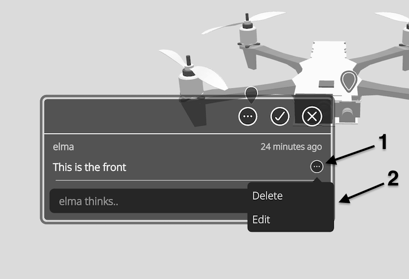
Each note will be part of a viewpoint (the viewpoint for a note will be automatically created in case it wasn't prior to creating the note).
To delete or edit a note, select it and click on the three dots on the right side of it then select Delete or Edit.
### E) Set Color
Select the color to change the color of the drawing tools (Pen and Marker). You can choose between Black, Red, Yellow and Blue.
#### Laser Pointer
You can access the laser pointer by clicking the laser pointer button in the top left. The endpoint of the laser pointer follows your cursor and will reach out until it snaps to an object in the collab room.
- [Getting started](https://help.gravitysketch.com/getting-started?hsLang=en#main-content)
- [Basic VR Controls](https://help.gravitysketch.com/getting-started?hsLang=en#basic-vr-controls)
- [Starter Resources](https://help.gravitysketch.com/getting-started?hsLang=en#starter-resources)
- [VR Guide](https://help.gravitysketch.com/getting-started?hsLang=en#vr-guide)
- [PC & VR Setup](https://help.gravitysketch.com/getting-started?hsLang=en#pc-vr-setup)
- [Troubleshooting](https://help.gravitysketch.com/troubleshooting?hsLang=en#main-content)
- [Troubleshooting](https://help.gravitysketch.com/troubleshooting?hsLang=en#troubleshooting)
- [FAQs](https://help.gravitysketch.com/troubleshooting?hsLang=en#faqs)
- [What's new?](https://help.gravitysketch.com/whats-new?hsLang=en#main-content)
- [Release Notes](https://help.gravitysketch.com/whats-new?hsLang=en#release-notes)
- [Product Updates & Releases](https://help.gravitysketch.com/whats-new?hsLang=en#product-updates-releases)
- [Creation tools](https://help.gravitysketch.com/creation-tools?hsLang=en#main-content)
- [Explore Workspace](https://help.gravitysketch.com/creation-tools?hsLang=en#explore-workspace)
- [Interact with Objects](https://help.gravitysketch.com/creation-tools?hsLang=en#interact-with-objects)
- [Sketching and Basic Editing](https://help.gravitysketch.com/creation-tools?hsLang=en#sketching-and-basic-editing)
- [Advanced Control](https://help.gravitysketch.com/creation-tools?hsLang=en#advanced-control)
- [SubD Editing](https://help.gravitysketch.com/creation-tools?hsLang=en#subd-editing)
- [File Management](https://help.gravitysketch.com/creation-tools?hsLang=en#file-management)
- [Beta Menu](https://help.gravitysketch.com/creation-tools?hsLang=en#beta-menu)
- [Quick Tips](https://help.gravitysketch.com/creation-tools?hsLang=en#quick-tips)
- [Import & export](https://help.gravitysketch.com/import-export?hsLang=en)
- [Collaboration](https://help.gravitysketch.com/collaboration?hsLang=en#main-content)
- [Collaboration in AR/VR](https://help.gravitysketch.com/collaboration?hsLang=en#collaboration-in-ar-vr)
- [Collaboration on Desktop](https://help.gravitysketch.com/collaboration?hsLang=en#collaboration-on-desktop)
- [Presentation](https://help.gravitysketch.com/collaboration?hsLang=en#presentation)
- [Data & security](https://help.gravitysketch.com/data-security?hsLang=en)
- [Gravity Sketch for businesses](https://help.gravitysketch.com/gravity-sketch-for-businesses?hsLang=en#main-content)
- [Organizations in Gravity Sketch](https://help.gravitysketch.com/gravity-sketch-for-businesses?hsLang=en#organizations-in-gravity-sketch)
- [Enterprise Features](https://help.gravitysketch.com/gravity-sketch-for-businesses?hsLang=en#enterprise-features)
- [Learn Gravity Sketch](https://help.gravitysketch.com/learn-gravity-sketch?hsLang=en#main-content)
- [Certification](https://help.gravitysketch.com/learn-gravity-sketch?hsLang=en#certification)
- [Community](https://help.gravitysketch.com/learn-gravity-sketch?hsLang=en#community)
- [Education](https://help.gravitysketch.com/learn-gravity-sketch?hsLang=en#education)
- [Labs](https://help.gravitysketch.com/labs?hsLang=en#main-content)
- [About Labs](https://help.gravitysketch.com/labs?hsLang=en#about-labs)
[](http://gravitysketch.com)
Copyright © 2026, Gravity Sketch