---
title: User Management
description: "Learn how to manage users in LandingPad: add new members, accept requests, assign roles, deactivate or remove accounts."
---
[Skip to content](https://help.gravitysketch.com/hc/en-us/articles/9436039091485-users-management#main-content)

Open main navigation
Close main navigation
How can we help you?
- There are no suggestions because the search field is empty.
1. [Gravity Sketch](https://help.gravitysketch.com/?hsLang=en)
2. [Gravity Sketch for businesses](https://help.gravitysketch.com/gravity-sketch-for-businesses?hsLang=en)
3. [Organizations in Gravity Sketch](https://help.gravitysketch.com/gravity-sketch-for-businesses?hsLang=en#organizations-in-gravity-sketch)
# User Management
Learn about best user management practices, how to add new members, accept requests, manage members' roles, and how to deactivate or delete them.
---
#### Add Users
1\. Log Into your LandingPad Account and Select **Members (1)** in the Manage section
2\. Click the **Add new member (2)** button (plus sign) on the right side (under the account button).
**-1.png?width=613&height=314&name=mceclip1%20(2)-1.png)**
3\. Enter the user’s email address (you can add multiple addresses)
4\. Select the role: you can choose to add users as creators (paid) or as screen trialists
5\. Finally click the **Add** button.
- If the user already has a LandingPad account, **they will need to be added as a personal account:** simply tick the box next to the 'Add members as a personal account (optional)' before clicking Add. A Gravity Sketch team member will be able to convert their account to be owned by your organisation.
- If this is a new user, this will trigger an email to them to create a LandingPad account.
.png?width=528&height=339&name=mceclip3%20(1).png)
---
#### Accept Requests
Any user in your org is able to request to add a colleague to the org. The Admin is then able to review these requests:
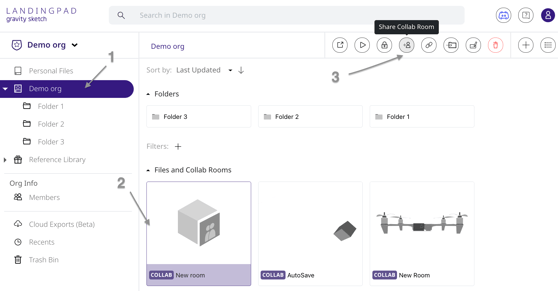
1. **Invite a user to a room:**
Users can invite colleagues to the org by navigating to a specific collab room and clicking on the ‘invite user to room’ button
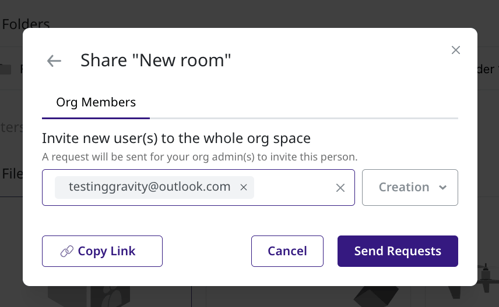
1. **Request to add to org**:
Enter the email, select the role (Creation or screen collab trial) and click on the Send Requests button.
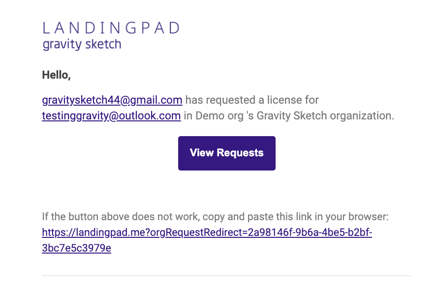
1. **Respond to request (Admin)**
The admin(s) will receive an email informing them that there is a pending request to add a colleague to the organisation.
The admin can review this and accept or deny the request in the Requests tab.
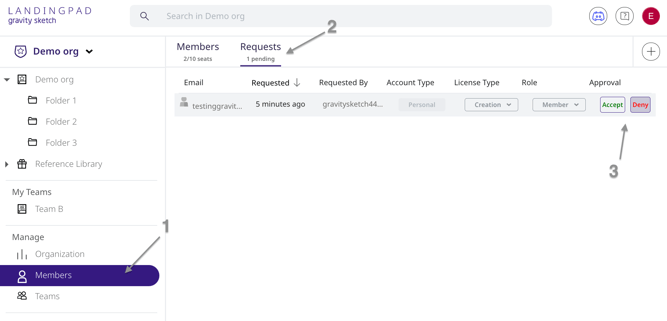
Accepting the request will add the member to the org (not only to the room)!
---
#### Change roles, Remove and Deactivate users
You can change roles, remove and deactivate existing members in the Members tab.
Select a member and click on any of the options shown in the screenshots below to perform an action:
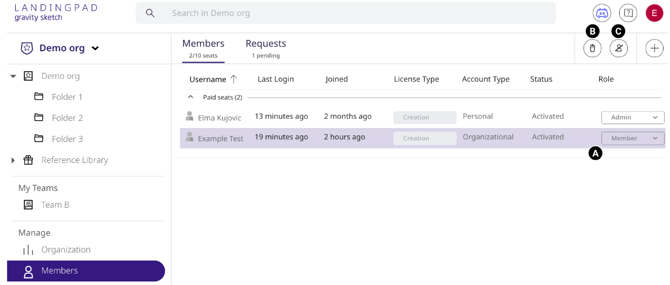
**A. Change role:** Select to change members role
**B. Remove Member:** Select to remove the member from the org.
**C. Make Inactive:** select to deactivate member. Once deactivated the member will be moved to the deactivated list and will not have access to the organisation. You can re-activate the user anytime by selecting the member on the deactivated list and clicking Make Active (the same button).
- [Getting started](https://help.gravitysketch.com/getting-started?hsLang=en#main-content)
- [Basic VR Controls](https://help.gravitysketch.com/getting-started?hsLang=en#basic-vr-controls)
- [Starter Resources](https://help.gravitysketch.com/getting-started?hsLang=en#starter-resources)
- [VR Guide](https://help.gravitysketch.com/getting-started?hsLang=en#vr-guide)
- [PC & VR Setup](https://help.gravitysketch.com/getting-started?hsLang=en#pc-vr-setup)
- [Troubleshooting](https://help.gravitysketch.com/troubleshooting?hsLang=en#main-content)
- [Troubleshooting](https://help.gravitysketch.com/troubleshooting?hsLang=en#troubleshooting)
- [FAQs](https://help.gravitysketch.com/troubleshooting?hsLang=en#faqs)
- [What's new?](https://help.gravitysketch.com/whats-new?hsLang=en#main-content)
- [Release Notes](https://help.gravitysketch.com/whats-new?hsLang=en#release-notes)
- [Product Updates & Releases](https://help.gravitysketch.com/whats-new?hsLang=en#product-updates-releases)
- [Creation tools](https://help.gravitysketch.com/creation-tools?hsLang=en#main-content)
- [Explore Workspace](https://help.gravitysketch.com/creation-tools?hsLang=en#explore-workspace)
- [Interact with Objects](https://help.gravitysketch.com/creation-tools?hsLang=en#interact-with-objects)
- [Sketching and Basic Editing](https://help.gravitysketch.com/creation-tools?hsLang=en#sketching-and-basic-editing)
- [Advanced Control](https://help.gravitysketch.com/creation-tools?hsLang=en#advanced-control)
- [SubD Editing](https://help.gravitysketch.com/creation-tools?hsLang=en#subd-editing)
- [File Management](https://help.gravitysketch.com/creation-tools?hsLang=en#file-management)
- [Beta Menu](https://help.gravitysketch.com/creation-tools?hsLang=en#beta-menu)
- [Quick Tips](https://help.gravitysketch.com/creation-tools?hsLang=en#quick-tips)
- [Import & export](https://help.gravitysketch.com/import-export?hsLang=en)
- [Collaboration](https://help.gravitysketch.com/collaboration?hsLang=en#main-content)
- [Collaboration in AR/VR](https://help.gravitysketch.com/collaboration?hsLang=en#collaboration-in-ar-vr)
- [Collaboration on Desktop](https://help.gravitysketch.com/collaboration?hsLang=en#collaboration-on-desktop)
- [Presentation](https://help.gravitysketch.com/collaboration?hsLang=en#presentation)
- [Data & security](https://help.gravitysketch.com/data-security?hsLang=en)
- [Gravity Sketch for businesses](https://help.gravitysketch.com/gravity-sketch-for-businesses?hsLang=en#main-content)
- [Organizations in Gravity Sketch](https://help.gravitysketch.com/gravity-sketch-for-businesses?hsLang=en#organizations-in-gravity-sketch)
- [Enterprise Features](https://help.gravitysketch.com/gravity-sketch-for-businesses?hsLang=en#enterprise-features)
- [Learn Gravity Sketch](https://help.gravitysketch.com/learn-gravity-sketch?hsLang=en#main-content)
- [Certification](https://help.gravitysketch.com/learn-gravity-sketch?hsLang=en#certification)
- [Community](https://help.gravitysketch.com/learn-gravity-sketch?hsLang=en#community)
- [Education](https://help.gravitysketch.com/learn-gravity-sketch?hsLang=en#education)
- [Labs](https://help.gravitysketch.com/labs?hsLang=en#main-content)
- [About Labs](https://help.gravitysketch.com/labs?hsLang=en#about-labs)
[](http://gravitysketch.com)
Copyright © 2026, Gravity Sketch