---
title: Settings (Screen Collab)
description: Learn how to adjust room settings in Gravity Sketch—manage audio input/output, UI visibility, environment options, and polygon counts.
---
[Skip to content](https://help.gravitysketch.com/hc/en-us/articles/9628538684445-settings-screen-collab#main-content)

Open main navigation
Close main navigation
How can we help you?
- There are no suggestions because the search field is empty.
1. [Gravity Sketch](https://help.gravitysketch.com/?hsLang=en)
2. [Collaboration](https://help.gravitysketch.com/collaboration?hsLang=en)
3. [Collaboration on Desktop](https://help.gravitysketch.com/collaboration?hsLang=en#collaboration-on-desktop)
# Settings (Screen Collab)
#### Settings
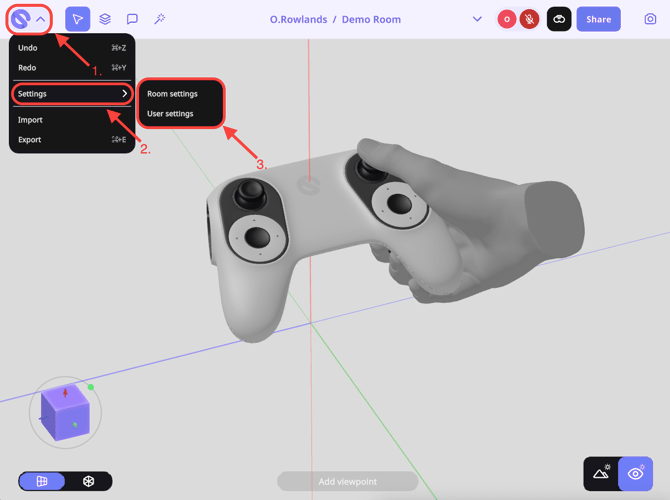
On the Screen App you have a variety of settings that you can configure. To do so:
1\. Head to the Gravity Sketch logo in the top left hand corner.
2\. Hover over Settings
3\. Select Room or User Settings.
#### Room Settings
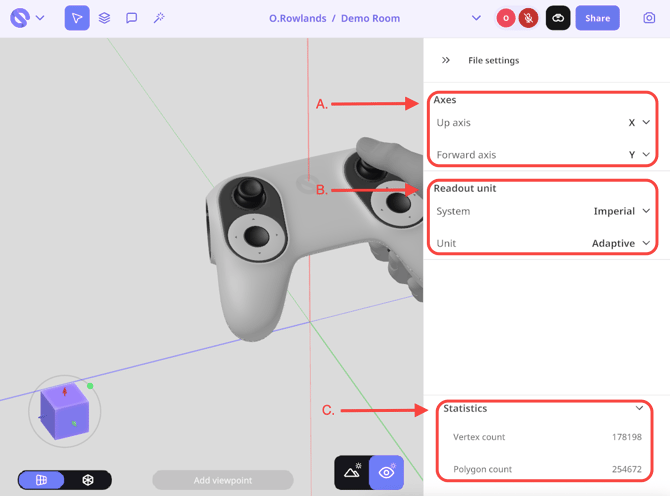
If you select Room Settings, you will have the ability to change/view:
A. **Axis**:
From here you can select the Up Axis to be X, Y, Z, -X, -Y, -Z.
B. **Readout Units**:
From here you can choose Imperial or Metric and a particular unit, or if you want it to automatically change according to size.
C. **Statistics**:
View Vertex and Polygon Count This can be useful for understanding how 'heavy' your sketch is.
#### User Settings
If you select User Settings, you will have the ability to change/view: .
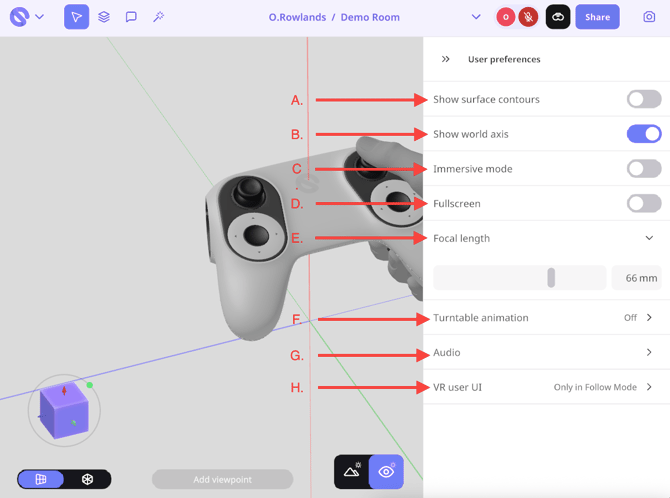
**A. Show surface contours:**
Display contour lines across surfaces to help visualise form, curvature, and subtle shape changes more clearly.
**B. Show world axis:**
Toggle the world axis indicator to keep track of orientation within the scene.
**C. Immersive Mode:**
Enter a distraction-free workspace that hides interface elements for a more focused, immersive design experience.
**D. Fullscreen:**
Expand the workspace to fill the entire screen, removing browser or window distractions for better visibility.
**E. Focal length:**
Adjust the camera’s focal length to control perspective, from wide-angle views to more zoomed-in, flattened compositions.
**F. Turntable animation:**
Automatically rotate your model on a turntable, useful for presentations or reviewing your design from all angles.
**G. Audio:**
Select and manage your preferred audio input and output devices for voice communication during sessions.
**H. VR user UI:**
Show or hide the in-VR user interface elements to customise how much information is visible while working in VR.
### Environment Settings
You can change the environment in the workspace settings in VR and the changes will be applied to the screen instantly.
- [Getting started](https://help.gravitysketch.com/getting-started?hsLang=en#main-content)
- [Basic VR Controls](https://help.gravitysketch.com/getting-started?hsLang=en#basic-vr-controls)
- [Starter Resources](https://help.gravitysketch.com/getting-started?hsLang=en#starter-resources)
- [VR Guide](https://help.gravitysketch.com/getting-started?hsLang=en#vr-guide)
- [PC & VR Setup](https://help.gravitysketch.com/getting-started?hsLang=en#pc-vr-setup)
- [Troubleshooting](https://help.gravitysketch.com/troubleshooting?hsLang=en#main-content)
- [Troubleshooting](https://help.gravitysketch.com/troubleshooting?hsLang=en#troubleshooting)
- [FAQs](https://help.gravitysketch.com/troubleshooting?hsLang=en#faqs)
- [What's new?](https://help.gravitysketch.com/whats-new?hsLang=en#main-content)
- [Release Notes](https://help.gravitysketch.com/whats-new?hsLang=en#release-notes)
- [Product Updates & Releases](https://help.gravitysketch.com/whats-new?hsLang=en#product-updates-releases)
- [Creation tools](https://help.gravitysketch.com/creation-tools?hsLang=en#main-content)
- [Explore Workspace](https://help.gravitysketch.com/creation-tools?hsLang=en#explore-workspace)
- [Interact with Objects](https://help.gravitysketch.com/creation-tools?hsLang=en#interact-with-objects)
- [Sketching and Basic Editing](https://help.gravitysketch.com/creation-tools?hsLang=en#sketching-and-basic-editing)
- [Advanced Control](https://help.gravitysketch.com/creation-tools?hsLang=en#advanced-control)
- [SubD Editing](https://help.gravitysketch.com/creation-tools?hsLang=en#subd-editing)
- [File Management](https://help.gravitysketch.com/creation-tools?hsLang=en#file-management)
- [Beta Menu](https://help.gravitysketch.com/creation-tools?hsLang=en#beta-menu)
- [Quick Tips](https://help.gravitysketch.com/creation-tools?hsLang=en#quick-tips)
- [Import & export](https://help.gravitysketch.com/import-export?hsLang=en)
- [Collaboration](https://help.gravitysketch.com/collaboration?hsLang=en#main-content)
- [Collaboration in AR/VR](https://help.gravitysketch.com/collaboration?hsLang=en#collaboration-in-ar-vr)
- [Collaboration on Desktop](https://help.gravitysketch.com/collaboration?hsLang=en#collaboration-on-desktop)
- [Presentation](https://help.gravitysketch.com/collaboration?hsLang=en#presentation)
- [Data & security](https://help.gravitysketch.com/data-security?hsLang=en)
- [Gravity Sketch for businesses](https://help.gravitysketch.com/gravity-sketch-for-businesses?hsLang=en#main-content)
- [Organizations in Gravity Sketch](https://help.gravitysketch.com/gravity-sketch-for-businesses?hsLang=en#organizations-in-gravity-sketch)
- [Enterprise Features](https://help.gravitysketch.com/gravity-sketch-for-businesses?hsLang=en#enterprise-features)
- [Learn Gravity Sketch](https://help.gravitysketch.com/learn-gravity-sketch?hsLang=en#main-content)
- [Certification](https://help.gravitysketch.com/learn-gravity-sketch?hsLang=en#certification)
- [Community](https://help.gravitysketch.com/learn-gravity-sketch?hsLang=en#community)
- [Education](https://help.gravitysketch.com/learn-gravity-sketch?hsLang=en#education)
- [Labs](https://help.gravitysketch.com/labs?hsLang=en#main-content)
- [About Labs](https://help.gravitysketch.com/labs?hsLang=en#about-labs)
[](http://gravitysketch.com)
Copyright © 2026, Gravity Sketch