---
title: Settings (Lobby)
description: Learn how to access and adjust Gravity Sketch Settings from the lobby, including handedness, haptics, cloud save, language, password changes, and more.
---
[Skip to content](https://help.gravitysketch.com/hc/en-us/articles/9952432379421-settings-lobby#main-content)

Open main navigation
Close main navigation
How can we help you?
- There are no suggestions because the search field is empty.
1. [Gravity Sketch](https://help.gravitysketch.com/?hsLang=en)
2. [Creation tools](https://help.gravitysketch.com/creation-tools?hsLang=en)
3. [Explore Workspace](https://help.gravitysketch.com/creation-tools?hsLang=en#explore-workspace)
# Settings (Lobby)
You can set some general settings, change your password or log out of your LandingPad account in Settings from the lobby. Learn how to access and enable them in the content below.
---
#### Access
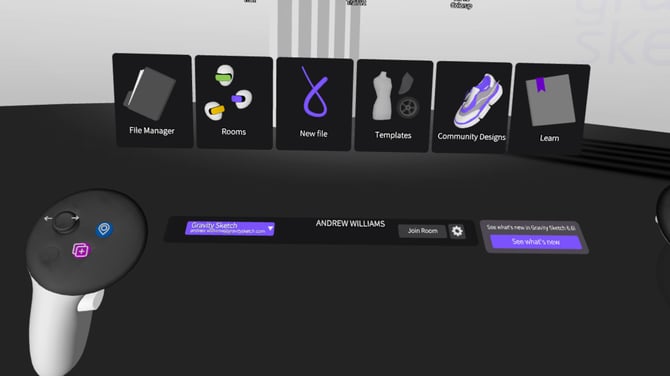
You can access the Settings from the lobby. Simply select the ⚙️ icon on the panel at the bottom.
---
#### Settings Panel
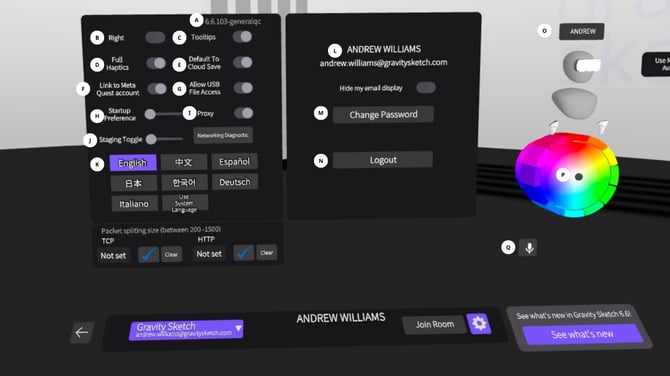
**A. Version:** you can find the current version of the app you are using here
**B. Handedness:** Switch between right and left-handed
**C. Tooltips:** Switch to the right to enable text tooltips when hovering over thumbnails and buttons
**D. Haptics:** Switch between Menu Haptics and Full Haptics
**E. Default to Cloud Save:** Set the default saving setting to Cloud (LandingPad) or to Local
**F. Link to Meta Quest Account:** Select to link your LandingPad account to the device
**G. Allow USB File Access:** Select to permit USB File Access when connecting to your desktop
**H. Startup Preference:** Allows you to choose whether the app opens to the lobby, a new sketch, or your most recent sketch
**I. Proxy (tethered headsets only):** Switch to the right to enable use of your system's proxy (learn more [here](https://help.gravitysketch.com/hc/en-us/articles/8426943584413?hsLang=en))
**J. Staging Toggle:** For internal use only. Ensure your toggle is set to the far left to access GS Web Servers
**K. Language:** Select your prefered language among 7 available languages or use the System Language
**L. Email Display:** Switch to hide or display email linked to your LandingPad account
**M. Change Password:** Select to change the password of your LandingPad account
**N. Logout:** Select to log out of your LandingPad account
**O. Display Name:** Select to change your display name in VR
**P. Headset Color:** Select to Change the color of you Headset Avatar
**Q. Mic Button:** Select to switch between muted or unmuted when in Rooms
- [Getting started](https://help.gravitysketch.com/getting-started?hsLang=en#main-content)
- [Basic VR Controls](https://help.gravitysketch.com/getting-started?hsLang=en#basic-vr-controls)
- [Starter Resources](https://help.gravitysketch.com/getting-started?hsLang=en#starter-resources)
- [VR Guide](https://help.gravitysketch.com/getting-started?hsLang=en#vr-guide)
- [PC & VR Setup](https://help.gravitysketch.com/getting-started?hsLang=en#pc-vr-setup)
- [Troubleshooting](https://help.gravitysketch.com/troubleshooting?hsLang=en#main-content)
- [Troubleshooting](https://help.gravitysketch.com/troubleshooting?hsLang=en#troubleshooting)
- [FAQs](https://help.gravitysketch.com/troubleshooting?hsLang=en#faqs)
- [What's new?](https://help.gravitysketch.com/whats-new?hsLang=en#main-content)
- [Release Notes](https://help.gravitysketch.com/whats-new?hsLang=en#release-notes)
- [Product Updates & Releases](https://help.gravitysketch.com/whats-new?hsLang=en#product-updates-releases)
- [Creation tools](https://help.gravitysketch.com/creation-tools?hsLang=en#main-content)
- [Explore Workspace](https://help.gravitysketch.com/creation-tools?hsLang=en#explore-workspace)
- [Interact with Objects](https://help.gravitysketch.com/creation-tools?hsLang=en#interact-with-objects)
- [Sketching and Basic Editing](https://help.gravitysketch.com/creation-tools?hsLang=en#sketching-and-basic-editing)
- [Advanced Control](https://help.gravitysketch.com/creation-tools?hsLang=en#advanced-control)
- [SubD Editing](https://help.gravitysketch.com/creation-tools?hsLang=en#subd-editing)
- [File Management](https://help.gravitysketch.com/creation-tools?hsLang=en#file-management)
- [Beta Menu](https://help.gravitysketch.com/creation-tools?hsLang=en#beta-menu)
- [Quick Tips](https://help.gravitysketch.com/creation-tools?hsLang=en#quick-tips)
- [Import & export](https://help.gravitysketch.com/import-export?hsLang=en)
- [Collaboration](https://help.gravitysketch.com/collaboration?hsLang=en#main-content)
- [Collaboration in AR/VR](https://help.gravitysketch.com/collaboration?hsLang=en#collaboration-in-ar-vr)
- [Collaboration on Desktop](https://help.gravitysketch.com/collaboration?hsLang=en#collaboration-on-desktop)
- [Presentation](https://help.gravitysketch.com/collaboration?hsLang=en#presentation)
- [Data & security](https://help.gravitysketch.com/data-security?hsLang=en)
- [Gravity Sketch for businesses](https://help.gravitysketch.com/gravity-sketch-for-businesses?hsLang=en#main-content)
- [Organizations in Gravity Sketch](https://help.gravitysketch.com/gravity-sketch-for-businesses?hsLang=en#organizations-in-gravity-sketch)
- [Enterprise Features](https://help.gravitysketch.com/gravity-sketch-for-businesses?hsLang=en#enterprise-features)
- [Learn Gravity Sketch](https://help.gravitysketch.com/learn-gravity-sketch?hsLang=en#main-content)
- [Certification](https://help.gravitysketch.com/learn-gravity-sketch?hsLang=en#certification)
- [Community](https://help.gravitysketch.com/learn-gravity-sketch?hsLang=en#community)
- [Education](https://help.gravitysketch.com/learn-gravity-sketch?hsLang=en#education)
- [Labs](https://help.gravitysketch.com/labs?hsLang=en#main-content)
- [About Labs](https://help.gravitysketch.com/labs?hsLang=en#about-labs)
[](http://gravitysketch.com)
Copyright © 2026, Gravity Sketch