In Screen App you have the ability to take a screenshot directly within Gravity Sketch.
Screenshot Menu
Top open the screenshots first head to the camera icon in the top right corner of the Screen App (1.).
This will then open screenshot mode and settings for the screenshot will appear. Set the settings and select the Capture button (2.) to take a screenshot.
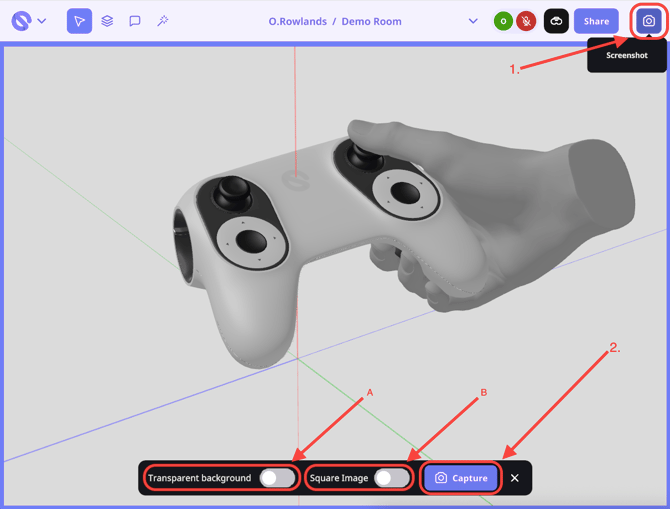
A. Transparent background: toggle on to make the screenshot background transparent.
B. Square image: toggle on to change the shape of the screenshot to a square.
If you wish to have a different environment in your screenshot, you can change the environment within VR, which will instantly be reflected in the Screen App.
If you wish to change the Screen App settings, such as removing the Axis, then you can do so in the User Settings. To learn more about that, check out this article.
Location of Screenshots
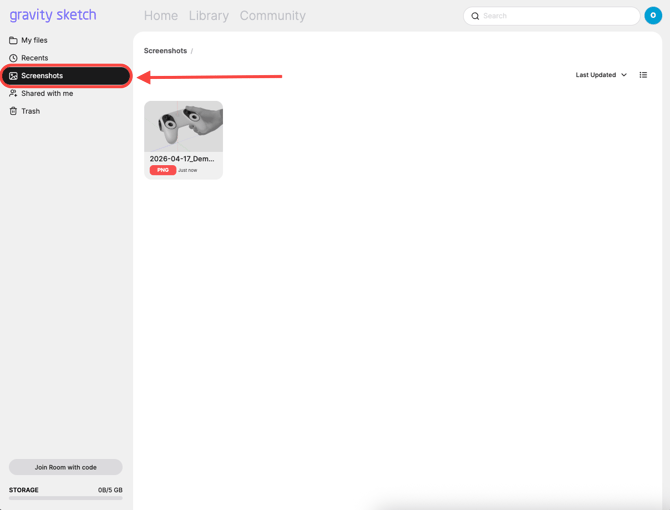
When you capture a screenshot, it shall be uploaded to your Screenshots tab in App.GravitySketch.com.
This can be found by either heading directly to https://app.gravitysketch.com/screenshots
or
By opening Screenshots from the home page (image shown below).